A complete guide to installing, using and testing REau. Guide of 28 Oct 2026, updated on 25 Nov 2026 for REau 0.3.1.
⚠️ REau is a personal, independent project, still in testing. It is not made by Royal Enfield and has no connection to it, to Google or to Waze. Every rider installs and uses it at their own risk. On the road, eyes on the road: touch the phone only while the motorcycle is stopped.
The screenshots in this guide come from the app’s Portuguese interface; the text uses the English labels of the app (Settings → App language lets you switch REau to English).
1. What REau is
What does REau do?
It brings the Android Auto of your own phone, with Waze (or another Android Auto navigation app), to the motorcycle’s round dash. No cable, no car head unit and no extra device. The phone can stay in your pocket with the screen off.
REau does not draw a map or calculate a route: it only repeats on the dash what Android Auto draws, cropped and scaled to the dash’s screen.
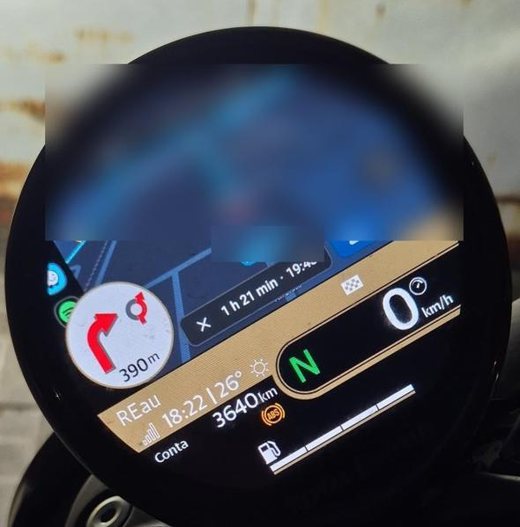
Waze on the dash through REau (map blurred for privacy).
How does it work, in one sentence?
REau “pretends” to be a car’s head unit inside your own phone. Android Auto sends it the video; REau crops and scales that video to the dash’s round screen and streams it over the dash’s Wi-Fi.
Why the name REau?
It is read “real”. It joins RE (Royal Enfield) with AU (Android Auto).
Which motorcycles does it work with?
With Royal Enfield motorcycles that have the round Tripper Dash TFT display (for example, the Himalayan 450’s). Compatibility was verified with dash firmware 13.10; other versions may work but have not been verified. The Bike data screen shows your dash’s firmware.
Does it work on iPhone?
No. REau is an Android-only app and depends on Android Auto, which does not exist on iPhone (the iPhone equivalent is CarPlay). A similar project for iPhone would be a different app, and a much harder road: it needs a paid annual developer license, and there is a risk of Apple rejecting or banning the app.
Which phones and Android versions work?
Requirements: Android 10 or newer, with Android Auto installed and up to date. REau was tested with Android Auto 17.8, 17.9 and 18.0. From Android Auto 17.4 on, the head unit server is turned on as described in section 4.
Is it easier than Royal Enfield’s official app?
Usage reports indicate that it is easier to connect and to set the route than in the official app. The main difference is that you use full Waze (or another Android Auto app), not the official app’s map. These are individual reports: the Terms of use warn that the picture arrives a few seconds late and can freeze.
Does it replace Waze’s voice?
No. Waze’s voice keeps coming out of the phone or the helmet intercom, as always.
Can I use REau together with the official Royal Enfield app or another dash app?
Not at the same time. Two apps connected to the dash fight over the same connection and the result is unpredictable. Close the other app (and stop its streaming) before turning REau on. If that happens, REau warns “Another app has the dash” and tries again on its own once the dash is free.
Does REau change or write anything on the dash?
REau does not write settings or firmware to the dash: it sends the picture and some display data (maneuver, music, caller…) and only reads what the dash reports (the Bike data screen). Even so, using REau can make the dash behave unexpectedly, freeze or show wrong information, and can affect warranties; the Terms of use explain these risks. Everyone uses it at their own risk.
Is it paid? Does it have an account or ads?
It is free software (AGPL-3.0 license), with no account, no ads and no data collection. The source code address is on the Credits screen, at the end of “REau and your data”.
Where do I get the APK? How do I know which version I have?
From the Releases page of the project’s repository (its address is on the app’s Credits screen). The app version is in the footer of the home screen. Official (release) APKs are called 0.3.0; test (debug) builds add the build date and time, such as 0.3.0-dev+26.10.28-12.46. Quote that text when reporting a problem.
2. Updating from the old versions
Is there more than one APK? Which one do I download?
There is a single app, REau (application id com.reau.app). On the Releases page, download the file REau-0.3.0.apk: the 0.3.0 is the version and changes with each Release. Ignore the “Source code” items (zip and tar.gz): they are the source code and cannot be installed.
By default REau opens Android Auto’s settings (once each time you turn it on, with REau on screen) and you turn the head unit server on by hand (section 4). It tells which Android Auto screen is open (map, menu, apps) from the picture itself, with a small neural network that runs on the phone.
I used the old REau Lite. What do I do?
REau 0.3.0 is a new app for you: the old Lite had the package com.reau.app.lite and the new one is com.reau.app. Redo the settings and the pairing with the dash, and then uninstall the old Lite. While it is still installed, the new app shows a discreet line and, if Android Auto does not respond, a warning.
I used the earlier REau (package com.reau.app). Do I reinstall?
No. Install REau-0.3.0.apkover it, without uninstalling: it is the same package, so the settings and the pairing stay. The accessibility service that earlier versions used is gone for good: it no longer shows in Android’s Accessibility settings, and the head unit server is now turned on by hand (section 4).
Can I keep two installations?
Not at the same time: the Android Auto server takes one session at a time and the two would fight over it (and over the dash). If REau finds the old Lite installed and Android Auto does not respond, it warns “Another REau is installed”: uninstall the old one (or turn it off), wait about a minute and the connection happens on its own.
How do I update to a new version?
Download the new APK from the same link and install it over the old one, without uninstalling. An update from the app signed by the project keeps your settings and the Wi-Fi of the bike already learned. Uninstalling erases everything, including logs and the permissions already granted. Changing from a test (debug) build to the official one, or the other way, is refused by Android because the two are signed with different keys: uninstall the old one first, and the settings are lost. Before uninstalling a test build, share its logs from the app (Settings → Debug → Share → Logs), because uninstalling erases the app’s data.
Is there a way to avoid starting the server by hand?
No, not with REau as it comes. From Android Auto 17.4 on, Google closed the automatic path, so you start the server by hand.
Can I get new versions without opening GitHub by hand?
Obtainium is a free third-party app that installs and updates apps straight from GitHub Releases, without a store. Install Obtainium, tap Add app, paste the address of the REau repository (https://github.com/Murkiriel/reau) and confirm. It tells you when a new version is out and installs it over the old one, keeping your settings. Only versions published in Releases count: test builds (such as 0.3.0-dev+…) are not Releases, and the option to include pre-releases should stay off. REau changes nothing because of this: its own check for updates (the Check now button and the daily notice) only tells you about a new version and opens its page, and never installs anything. Obtainium is a third-party app, which the project neither maintains nor guarantees.
3. Installation and permissions
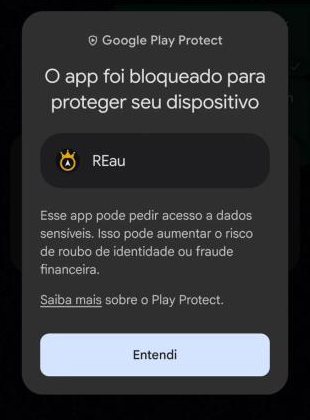
Play Protect blocked the installation. Now what?
It can happen. Play Protect sometimes blocks apps from outside the Play Store (“App blocked to protect your device”). To install:
Open the Play Store → profile picture → Play Protect → gear.
Pause app scanning.
Install the APK again.
If you like, turn Play Protect back on afterwards.
The block does not always happen: sometimes the install goes straight through. Pausing Play Protect removes a protection from the phone: install only the official APK, from the project’s Releases page, and turn Play Protect back on right after.
The Play Protect warning when installing the APK.
Which permissions does REau ask for, and why?
Permission
What for
When it is asked
Location (approximate and precise)
List Wi-Fi networks and find the bike’s Wi-Fi by itself (Android only returns the list with it), also while REau is behind another app or the screen is off (for that the pinned notification carries the location type, and Android may show the location icon during the projection). It does not read your position for this. With “Use location” on (it is on by default, and only works once this permission is allowed), also the sun-based theme, the weather (with the position rounded to 11 km) and the info ring’s GPS heading.
On first open, after the terms (or when you tap Turn on, if REau does not know the dash’s name yet). Choose “While using the app”
Suggested Wi-Fi networks
Let the phone join the dash’s network by itself (Android’s own question).
The first time
Exempt from battery optimization
Stop Android from pausing REau with the screen off.
Button on the home screen
Notifications
The pinned notification with the status and the Turn off button.
When you tap Turn on
Answer calls and Phone state
Answer, decline and hang up calls with the joystick and know whether the phone is ringing, and the network generation (4G, 5G) for the dash. REau does not read numbers or calls.
With the “Answer calls” switch (on by default, but it only works once the permission is allowed: use the Permissions screen)
Microphone
Talk to Gemini through the helmet’s Bluetooth headset, without the joystick.
With the “Gemini” switch (on by default, but it only works once the permission is allowed: use the Permissions screen)
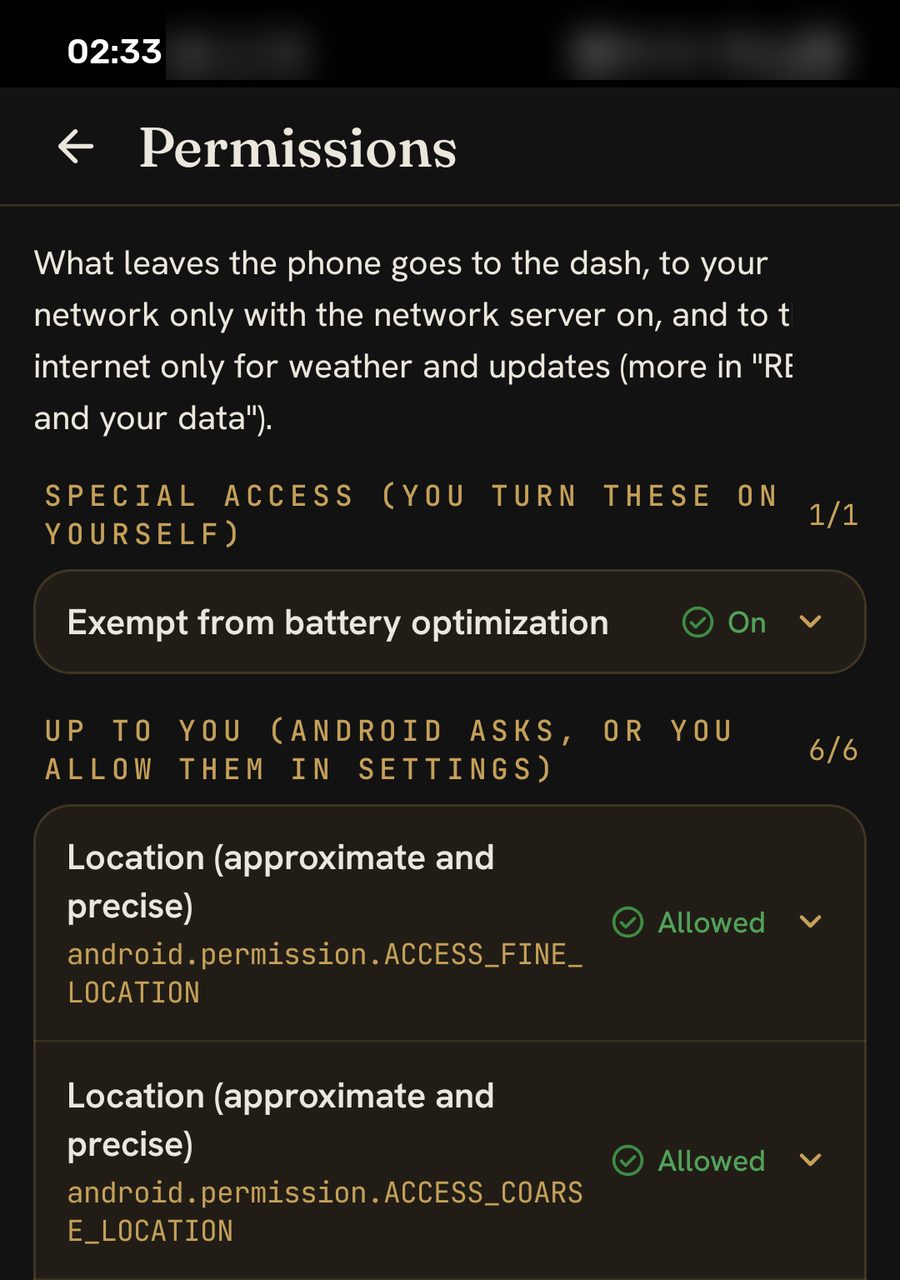
The Permissions screen shows what is already allowed and, while something is missing, has the “Ask for the missing ones (N)” button. The location is a single row (“Location (approximate and precise)”, allowed when the precise one is, which is the one the Wi-Fi list needs). Tap a row to see what REau uses the permission for and, if it is missing, “Allow”. The “N missing” counter only counts permissions of the functions that are switched on; those of switched-off functions show as optional.
After a permission has been refused twice, Android starts refusing by itself, without showing the window. When that happens with “Allow” or with “Ask for the missing ones”, REau opens its own permissions page in Android (the “Open REau’s permissions in Android” button leads to the same place) and writes a line in the log. Turn on does the same after its question, but only once, so that someone who refused the location on purpose is not sent to the page at every Turn on; the projection starts anyway. Not yet tried on the phone.
The Permissions screen (here with everything allowed; the “Ask for the missing ones” button only shows when something is missing).
Will Google block apps installed from outside the Play Store?
According to the author, Google has been tightening the rules for installing outside the store, even for developers: a rule started on 30 Sep 2026 in Brazil and a few other countries and is meant to reach the whole world by 2027. How this will affect independent projects like REau is not yet known; this section will be updated.
4. Developer mode and the Android Auto server
I already turned on my phone’s developer mode. Isn’t that enough?
No. This is the most common mix-up: they are two different things. REau needs Android Auto’s developer mode, which lives inside Android Auto’s own settings. The phone’s developer mode is not needed.
How do I turn on Android Auto’s developer mode?
You do this once:
In REau, tap “Open Android Auto settings” (or open it from the phone: on Samsung, Android Auto has no icon and lives inside Settings).
Scroll to the bottom and tap about 10 times on Version (in the version and permissions information).
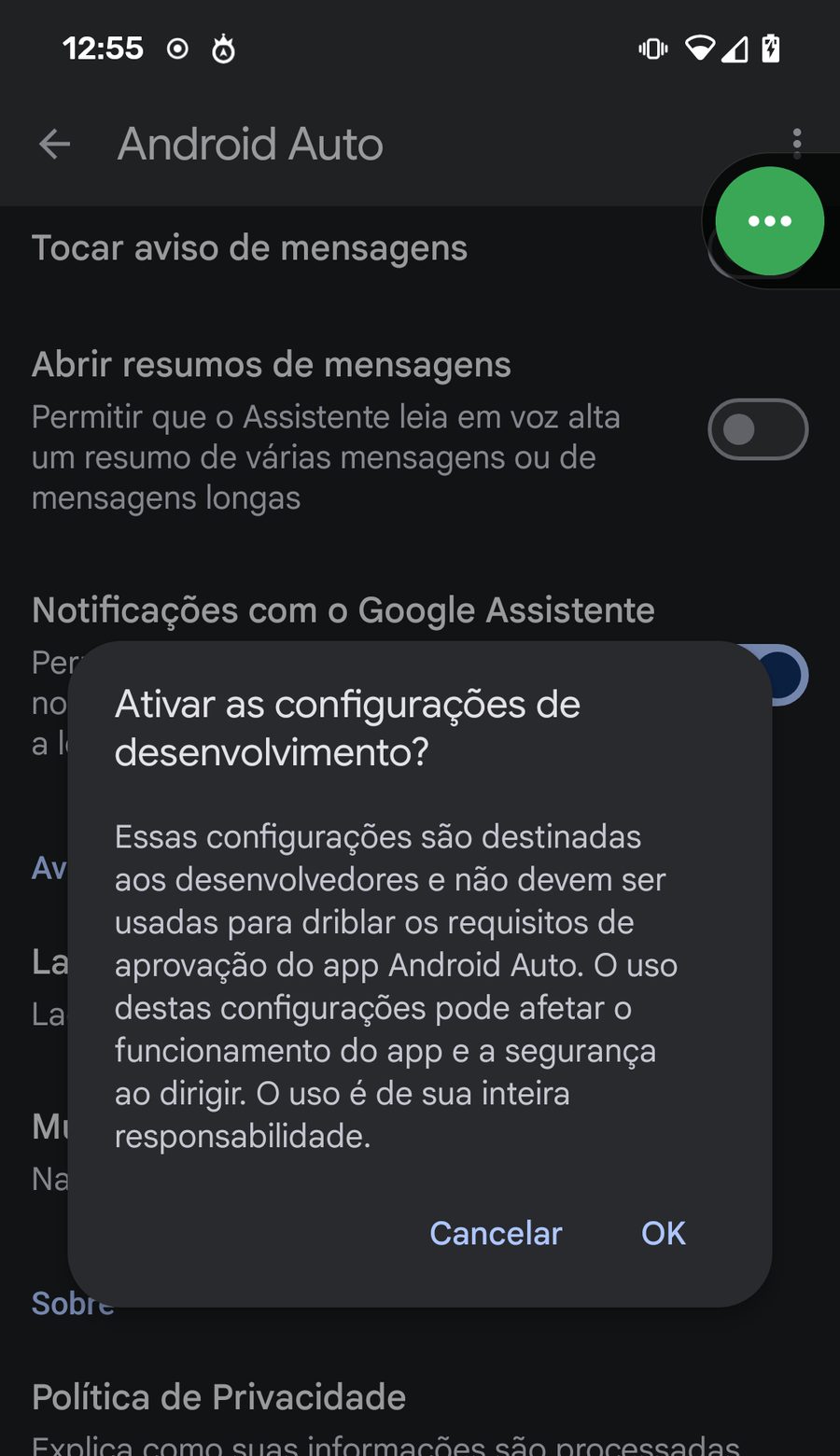
Confirm the question about enabling developer settings (OK) (Android Auto’s warning reminds you that these settings are for developers and that you use them entirely at your own responsibility).
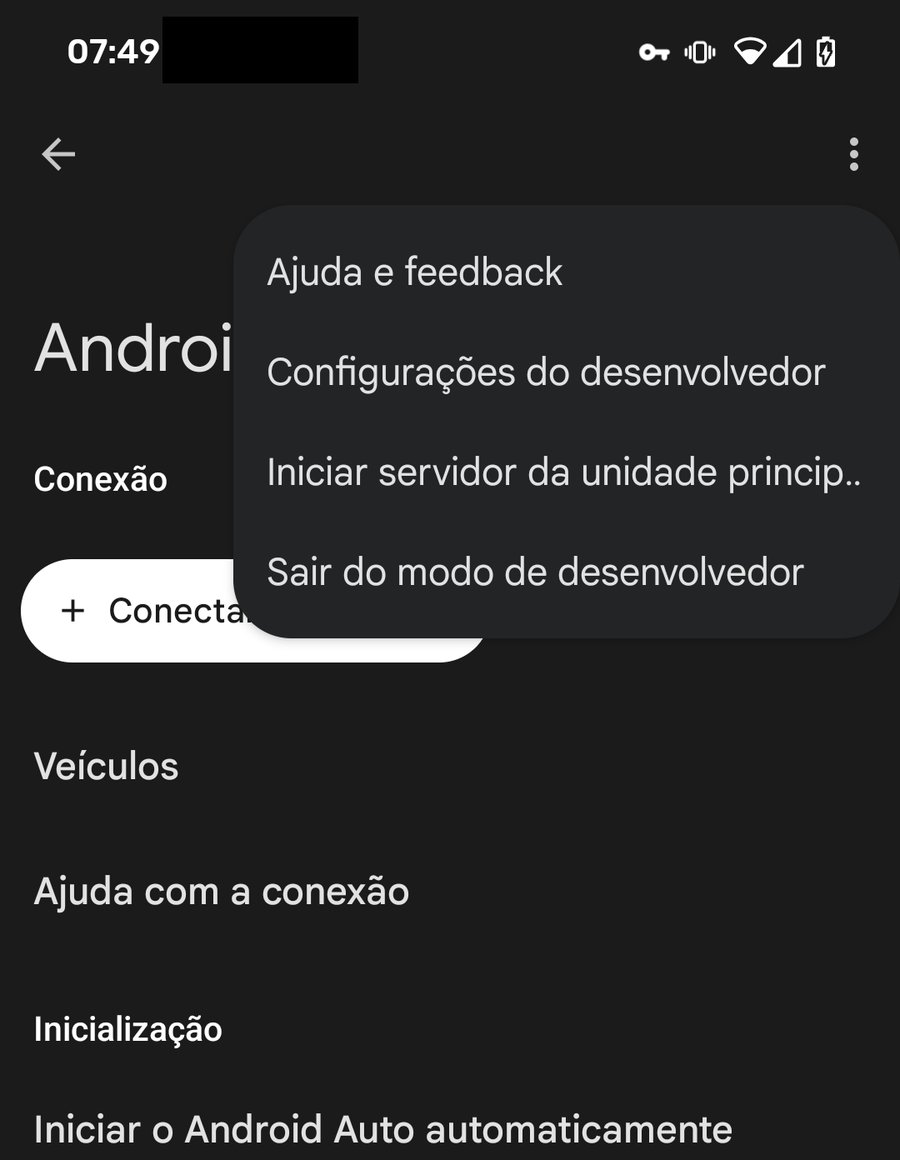
After that, Android Auto’s ⋮ menu (top corner) has three new items: Developer settings, Start head unit server and Quit developer mode.
Do not tap “Quit developer mode”: you would have to redo the 10 taps.
After the taps on “Version”, confirm with OK.Android Auto’s ⋮ menu with the developer items.
If Android Auto’s ⋮ menu doesn’t show “Start head unit server”, developer mode isn’t on yet: redo the taps on “Version”.
What is the “head unit server”?
It is the “front door” Android Auto opens for an external head unit. Since Android Auto 17.4, this is the only way for an app like REau to connect to it. The server should turn off when the session ends (it sometimes takes a few minutes), when the phone restarts or when Android Auto updates.
How do I turn the server on? (by hand every time)
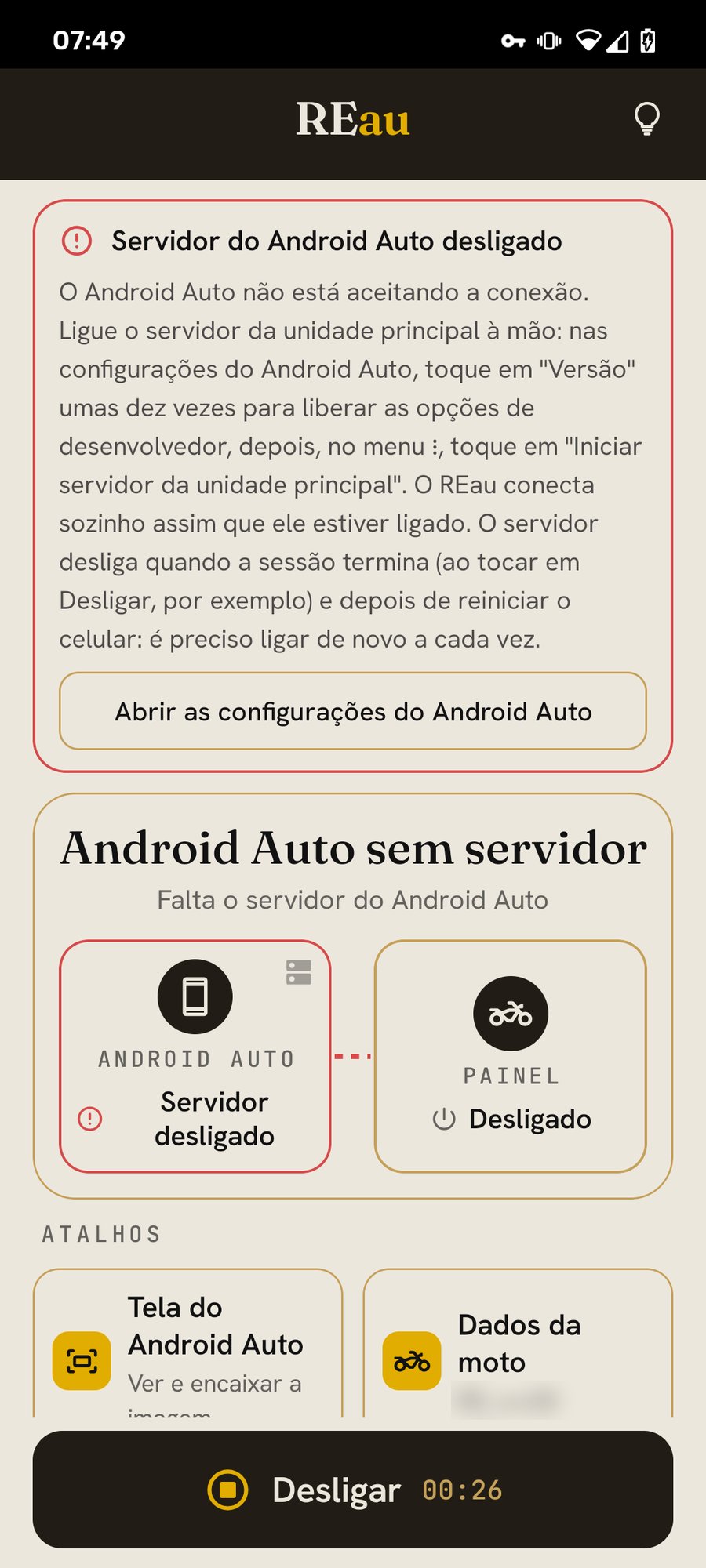
Turn the bike on, open REau and tap Turn on. The “Head unit server is off” warning appears.
REau takes you to Android Auto’s settings by itself (once each time you turn it on, while REau is on screen). If it does not, tap “Open Android Auto settings”.
In the ⋮ menu, tap “Start head unit server”.
Go back to REau. It connects by itself.
From the second time on, developer mode is already on: only step 3 is needed each time. It is a good idea to turn REau on near the bike, because it starts hunting for the dash right away.
The head-unit-server-off warning, with the button that opens Android Auto’s settings.
Can REau turn the server on by itself?
No. With Android Auto 17.4 or newer you turn the server on by hand each time (previous question): REau only takes you to Android Auto’s settings, once each time you turn it on, and connects by itself as soon as the server answers.
Why isn’t the server left on all the time?
It could be turned on once and left until the phone restarts, but the author preferred “turn everything off, then everything on”: for security (the server listens for connections while it is on) and battery (it is not yet known how much it drains idle). Leaving it always on may become an option in the future.
Can Android Auto be started fully automatically?
Up to Android Auto 17.3 it could; from 17.4 on, Google closed that path. The only known one today is the developer server. The downside: being a developer feature, Google may change or remove it in an update.
Does developer mode break Android Auto in my car?
No, in the test that was run: with developer mode on in the phone, a car’s Android Auto worked normally (19 Oct 2026).
Android Auto looks frozen or won’t open. What can I do?
Sometimes Android Auto accepts REau’s connection and doesn’t answer, or takes long to come back. What REau already does by itself: it tries again every few seconds; it wakes Android Auto by opening its settings for a moment before dialing; on the phone it says “Closing the previous session” (normal right after Turn off: up to a minute) and, after 3 tries in a row with no answer, “Android Auto isn’t responding”; and if Android Auto’s session drops for more than 5 seconds in the middle of a ride, the dash shows “Waiting for Android Auto” until a new picture arrives. The warnings go away on their own when Android Auto answers.
What you can do:
If the warning is “Closing the previous session”, wait up to a minute.
Take Android Auto out of “Restricted” in Settings → Apps → Android Auto → Battery (use “Unrestricted”): a restricted Android Auto is the usual reason Android freezes it. It may help; this has not been proven yet (section 10).
Turn the projection off and on: tap Turn off and then Turn on in REau; if that isn’t enough, stop and start the head unit server in the ⋮ menu.
Still nothing? Force stop Android Auto (Settings → Apps → Android Auto → Force stop) and turn the projection on again.
What is “Announce as a motorcycle”?
A switch in Settings → Android Auto (on by default). With it on, REau tells Android Auto that its head unit belongs to a motorcycle, not a car. The first time, Android Auto sees a new vehicle and may ask for the permissions on the phone again; the microphone may become the phone’s. It applies from the next time you turn on. What it changes on Android Auto’s screen has not been assessed yet. It is only information inside the phone, and it does not leave it (section 14).
5. First connection to the bike and Wi-Fi
What happens the first time I tap Turn on?
With the bike on, REau looks for the dash’s Wi-Fi network, which starts with RE_ (“Looking for the dash”).
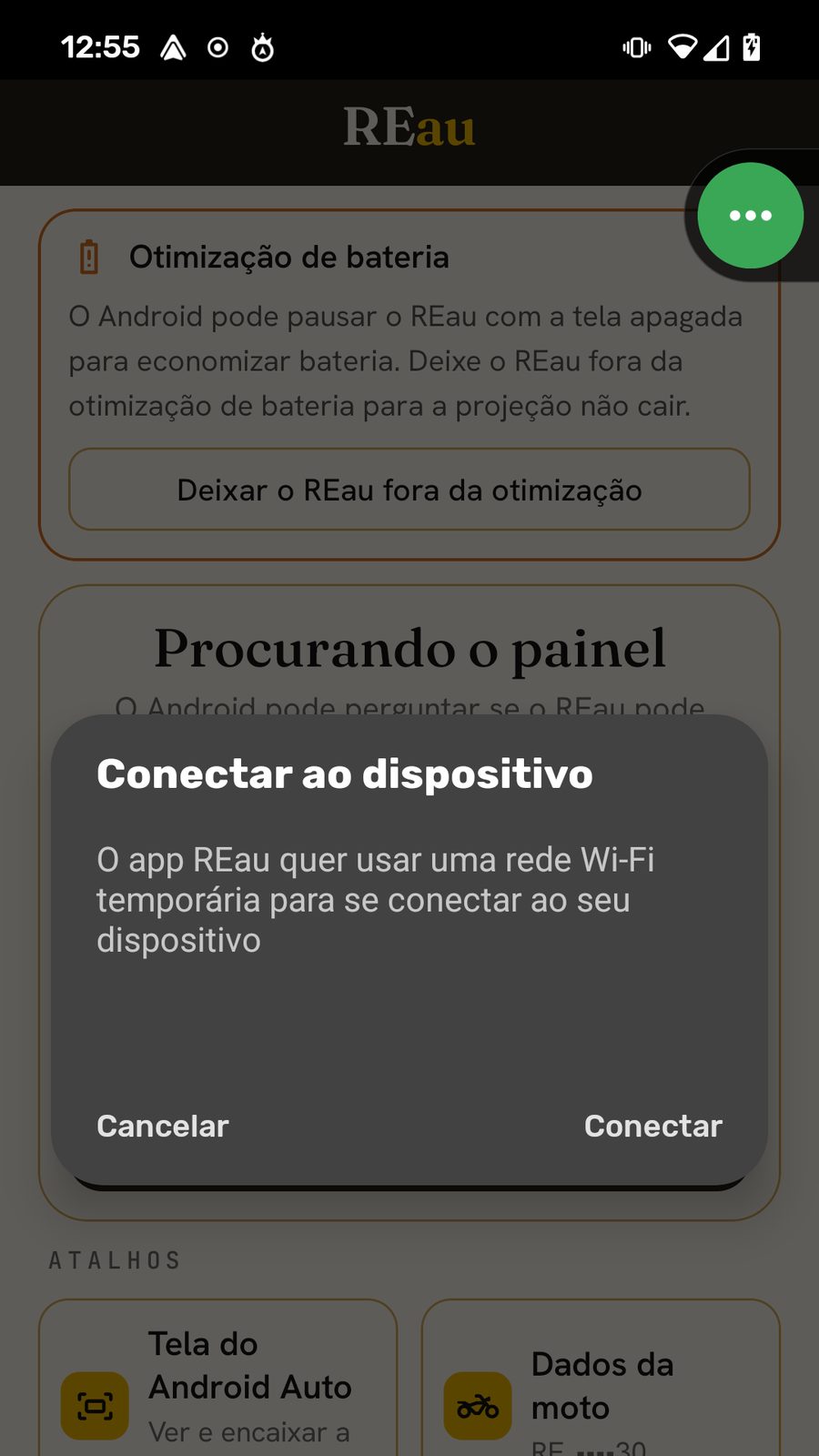
Android asks “Connect to device”. Tap Connect. This only happens the first time; REau waits up to 2 minutes for your tap.
The phone leaves your home Wi-Fi and joins the bike’s network, as with other dash apps.
REau connects to the dash and to Android Auto, and the picture appears.
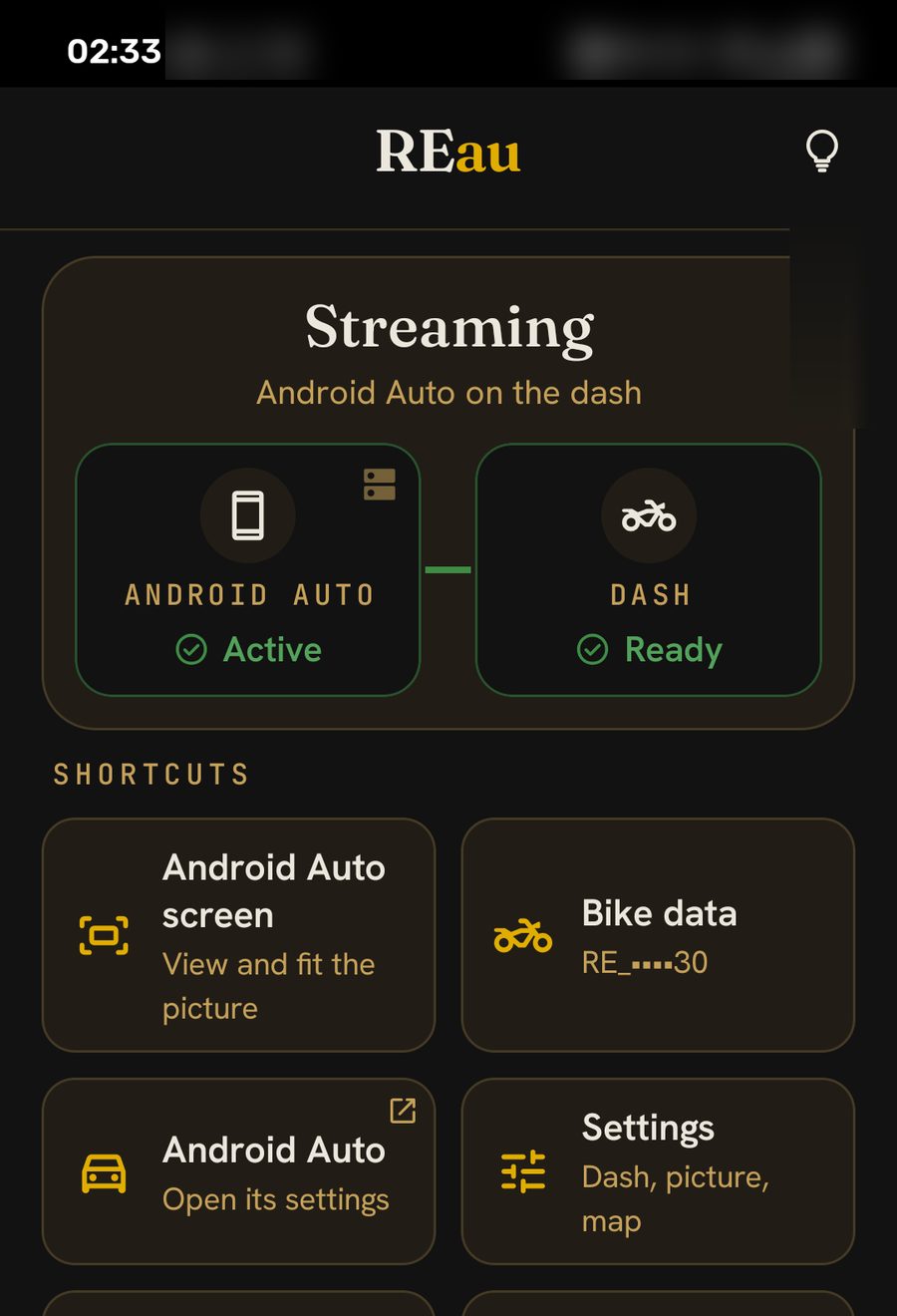
The home screen shows both sides, ANDROID AUTO and DASH. When both turn green (“Active” and “Ready”), REau is Streaming.
The “Connect to device” request (first time only). Picture from an earlier version of the app.Android Auto “Active” and dash “Ready”: streaming.
If the phone stays on the bike’s Wi-Fi, does Waze lose the internet?
No. The bike’s network has no internet, but mobile data keeps working for Waze. REau uses the bike’s network only to talk to the dash.
REau can’t find the bike’s Wi-Fi. What do I do?
Check that the bike’s key is on and the dash is lit.
Also check that the phone’s Wi-Fi is on. With it off REau cannot join the dash’s network, and it used to stay on “Looking for the dash” without saying why; now it tells you on the home screen and in a notification, with a Turn on Wi-Fi button that opens Android’s Wi-Fi panel, and it connects as soon as the Wi-Fi is back. (Android doesn’t let an app switch Wi-Fi on by itself.)
Allow Location for REau: without it Android doesn’t hand over the list of networks. (REau doesn’t read your position for this.)
Android lets an app list networks only with the location permission, and with REau behind another app or with the screen off only because the projection’s pinned notification carries the location type (REau doesn’t read your position for this, and Android may show the location icon during the projection). If the list stays empty anyway, turn the projection on with REau open on screen, near the bike.
In Bike data, type the dash’s full name in the “Full Wi-Fi name” field (as it shows in the phone’s Wi-Fi list, for example RE_AB12_345678). The dash only accepts the full name.
For privacy the name shows masked (RE_••••30); the Show button displays the whole name.
I changed motorcycle, or there is more than one dash nearby.
In Bike data, tap Forget. It deletes the saved dash name, everything the dash has already reported and the network suggested to Android; then REau searches again. Check the name before continuing.
I use a VPN. Is that a problem?
Yes. No app can talk to the Royal dash with a VPN running through it, and REau warns with the card “A VPN is holding REau back”. There are two ways:
Turn the VPN off while you use REau.
Exclude REau from the VPN (“split tunneling” in the VPN app) and fully disconnect and reconnect the VPN for the exception to apply.
If Android refuses the dash’s network four times in a row (a VPN is the most common cause, but so is the automatic switch between Wi-Fi and mobile data), REau sends a notification with sound in the “Dash alerts” channel saying what to try, and it goes away when a connection works.
The dash refuses the connection, or REau says “Another app has the dash”.
Another app has the dash: another dash app (such as the official one) is streaming and holds the phone’s port 2002. Stop its streaming; REau tries again on its own. The home screen shows the card, and REau also warns once in the “Dash alerts” channel (sound and vibration, to be heard with the screen off): “Another app is using the dash connection. Close it so REau can come back.” The warning is not repeated at every new try and goes away when REau connects or the projection ends. Not yet tried on the bike.
The dash stopped responding: after three sessions in a row that end with the dash silent and its Wi-Fi still joined (a dash that is still starting does not count, and neither does the ordinary ignition-off, when the dash’s Wi-Fi disappears), REau warns once in the same channel: “The dash stopped responding. If it does not come back, turn the ignition off and on.” The warning goes away when a session streams again, the network drops or the projection ends. Not yet tried on the bike.
The dash refuses the connection even though everything is right: the dash may have frozen. Turn the motorcycle off with the key, wait about 30 seconds and turn it back on; REau keeps trying on its own.
When the dash really hangs (it shows in the Wi-Fi list with a good signal and refuses every join), REau warns with the notification and with three short beeps on the phone’s output (the headset or the helmet’s intercom). It cannot warn on the dash itself: a hung dash is one REau cannot talk to. A dash that really hung is still called hung after you turn REau’s projection off and on: for 5 minutes, the first try of the next start already shows the warning (before, it took about 45 s to come back). Only the bike’s ignition unfreezes the dash. Not yet tried on the bike.
I turned on the “network server” and REau doesn’t look for the dash.
That is how it works: with “Turn on the network server” on (section 12), REau does not look for the dash, because the idea is to run on another device. Turn that switch off to go back to using the bike.
The picture dropped on the way. What if I turn the bike off?
If the dash’s Wi-Fi disappears, REau notices within a few seconds, warns and reconnects by itself, without freezing. When the Wi-Fi returns (for example, when you turn the key on again), the dash resumes streaming within a few seconds, with no wait. The dash’s Wi-Fi dropping at the end of a ride means the key was turned off, and it is normal.
When you turn the key back on, REau spots the dash in the Wi-Fi list Android already has by looking every 0.5 s (it never asks for a new scan), does not tear down a connection Android is already making to the dash and, if the phone has just left another Wi-Fi, waits up to 1 s before asking for the dash’s network again, so Android does not drop the request. If the phone joins the dash’s Wi-Fi by itself (a saved network), a projection that was waiting for the next try comes back at once, without waiting the whole minute. What is left of the wait is the dash starting and Android’s own scan. Not yet tried on the bike.
6. Everyday use
What is the routine for going out on the bike?
Turn the bike on.
Open REau and tap Turn on (the Android Auto server is turned on by hand after you tap Turn on: section 4).
Set the route in Waze (see the next question).
Put the phone away. You can switch the screen off and put it in your pocket.
To finish, tap Turn off in the app or in the notification. The Turn on/Turn off button stays fixed at the foot of the home screen, always in view.
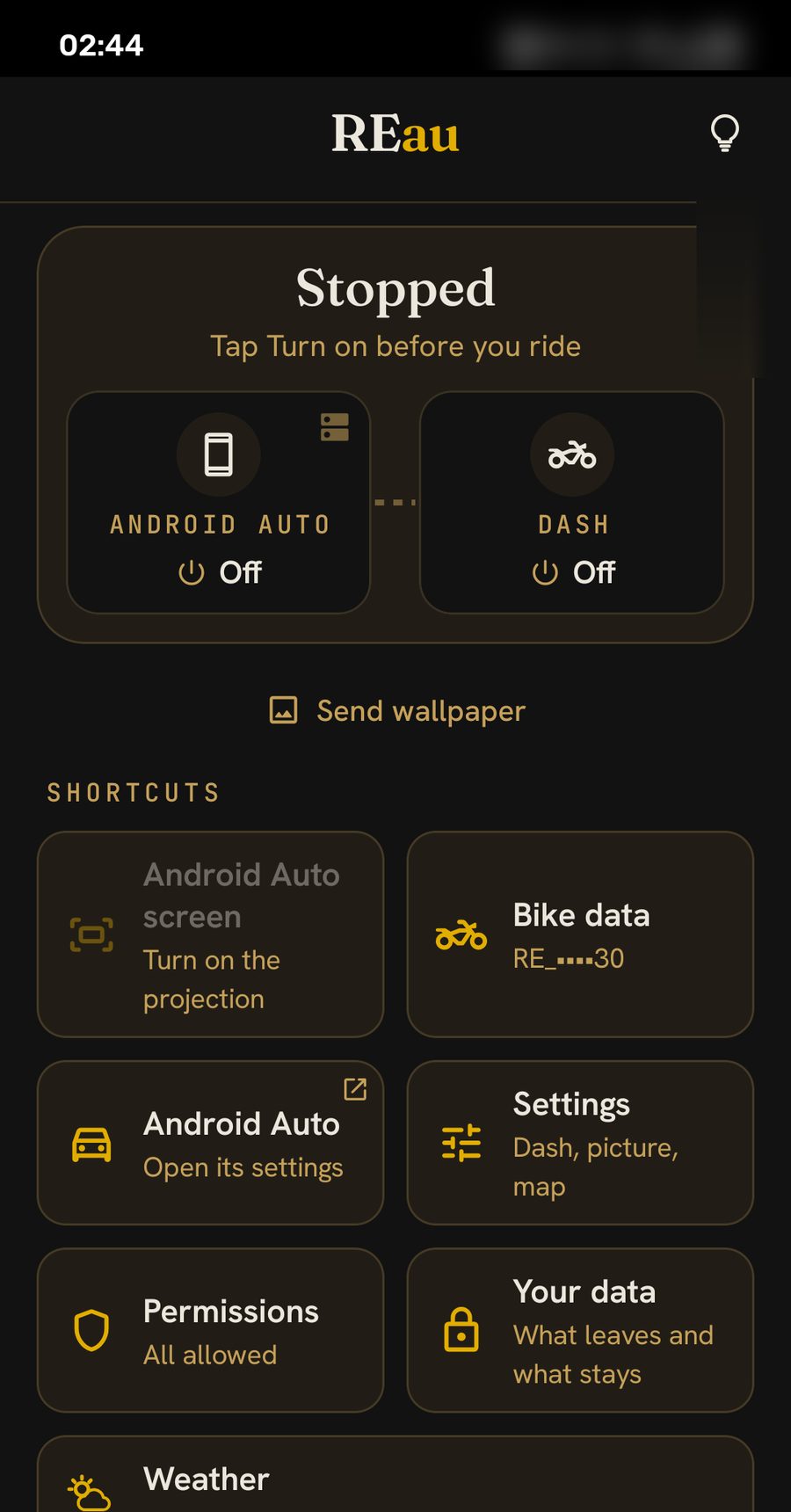
Home screen, stopped: tap Turn on before you ride.
I turned it off and on quickly and it didn’t connect.
After Turn off, Android Auto takes up to about 1 minute to close the previous session and, meanwhile, accepts the connection without answering. REau shows “Android Auto is closing the previous session” and tries again by itself. To skip the wait, in Android Auto’s settings stop and start the head unit server again (⋮ → “Stop head unit server”, then “Start head unit server”).
How do I set the destination in Waze?
With the bike stopped, in one of these ways:
In the Waze app on the phone: open it, set the route and it shows on the dash.
By voice: tap Android Auto’s microphone button and say the destination.
Through REau’s “Android Auto screen” (see the next question).
Google Maps opened instead of Waze, or the dash shows the apps menu. How do I switch?
Android Auto opens the last navigation app used. And if Waze gets closed on the phone (for example, during a long stop), Android Auto returns to the apps menu. To switch:
On the home screen, tap “Android Auto screen”.
Tap and drag on the picture to use Android Auto, as if it were a car screen. The dash keeps receiving the picture.
Open the apps menu and choose Waze.
While riding, and only with the bike in a safe condition, you can use the joystick (apps menu button) to find the Waze icon and open it. When stopped, the app is easier. Opening Waze straight from the dash depends on Android Auto and how it manages apps; REau cannot force that. What you can do: on the app’s Joystick screen, put the Switch map and music action on a joystick button. Away from the map, it opens, full screen, the last navigation app used in Android Auto (Waze, if that was the last one). After using Waze once, it tends to open directly.
REau’s Android Auto screen, with the apps menu open.
When should I use the phone and when the joystick?
Stopped: use the phone, which is much easier.
Riding: use the joystick, only for the essentials (zoom, music, answering a call).
Do settings apply right away or do I have to turn it off and on?
The LIVE tag marks what applies right away, with the projection on: language, theme, using the location, answering calls, phone status, album art, maneuver ring, turning off by itself without the dash and the logs. The weather switch (on the Weather screen) and the joystick page also apply right away, without the tag. On the Android Auto screen, fit, crop, position and the info ring also apply right away. The DPI and the margins apply right away but restart Android Auto (the picture freezes for a few seconds). The rest applies the next time you turn on.
What happens if I lock the phone screen?
On the dash, nothing changes: the projection continues normally. What stops is the preview inside the app (Android Auto screen), because there is no way to use it with the phone locked. That also explains the “glitchy” picture some people saw in the preview: with the phone in use, it generates two different videos, one for the dash and one for the app’s screen.
Can I close REau from the recent apps?
The projection runs as a service, with the pinned notification, and keeps going even if the app is swiped away from recents by accident. If something won’t turn on, it sometimes helps to clear REau from recents and open it again.
Can I turn REau on without opening the app first?
Yes. A long press on REau’s icon shows “Turn on”, and the “REau” tile in Android’s Quick Settings (the notification shade; add it with the pencil) does the same. Either one opens REau and, if the projection is stopped and the phone is unlocked, turns it on, so you can do it at home before putting on the helmet (with the lock screen showing, REau only opens; it does not turn on). Nothing happens before the terms of use are accepted.
“Switch to driving routes” shows up in Google Maps. Is that a REau bug?
No. REau presents itself to Android Auto as a motorcycle, but Google Maps on Android Auto has no motorcycle mode: there it only navigates with car routes, which is why it shows that message. It is a limitation of Maps itself, and REau has no way to change it.
You can accept the car route from Maps or use Waze, which has its own vehicle type setting (look in Waze’s settings).
7. Picture on the dash: fit, crop and mask
Why does the map on the dash look cropped?
Android Auto always draws at 800×480, and the dash screen is 526×300, without the two top corners, which sit behind the ring, and REau sends a 528×304 picture (the 526×300 aligned to 16, a size the dash does not stretch). REau crops and scales the picture to fit in the most legible way possible.
How do I adjust the picture?
In the “Android Auto screen” (shortcut on the home screen). It shows the preview and lets you adjust:
Mode:Whole image (Android Auto’s picture fits inside the dash area, nothing hidden by the round edge) or Center crop (takes only a middle part and enlarges it; the crop’s size and place are adjustable).
Move the picture horizontally and vertically, one by one.
Android Auto DPI (see below).
The Navigation tab (Waze, Google Maps) and the Others tab (apps menu, Spotify…), each with its own fit. Reset to default undoes the fit of the tab that is open.
The info ring (section 11).
Turn the phone to landscape to see the whole of Android Auto in full screen and touch it.
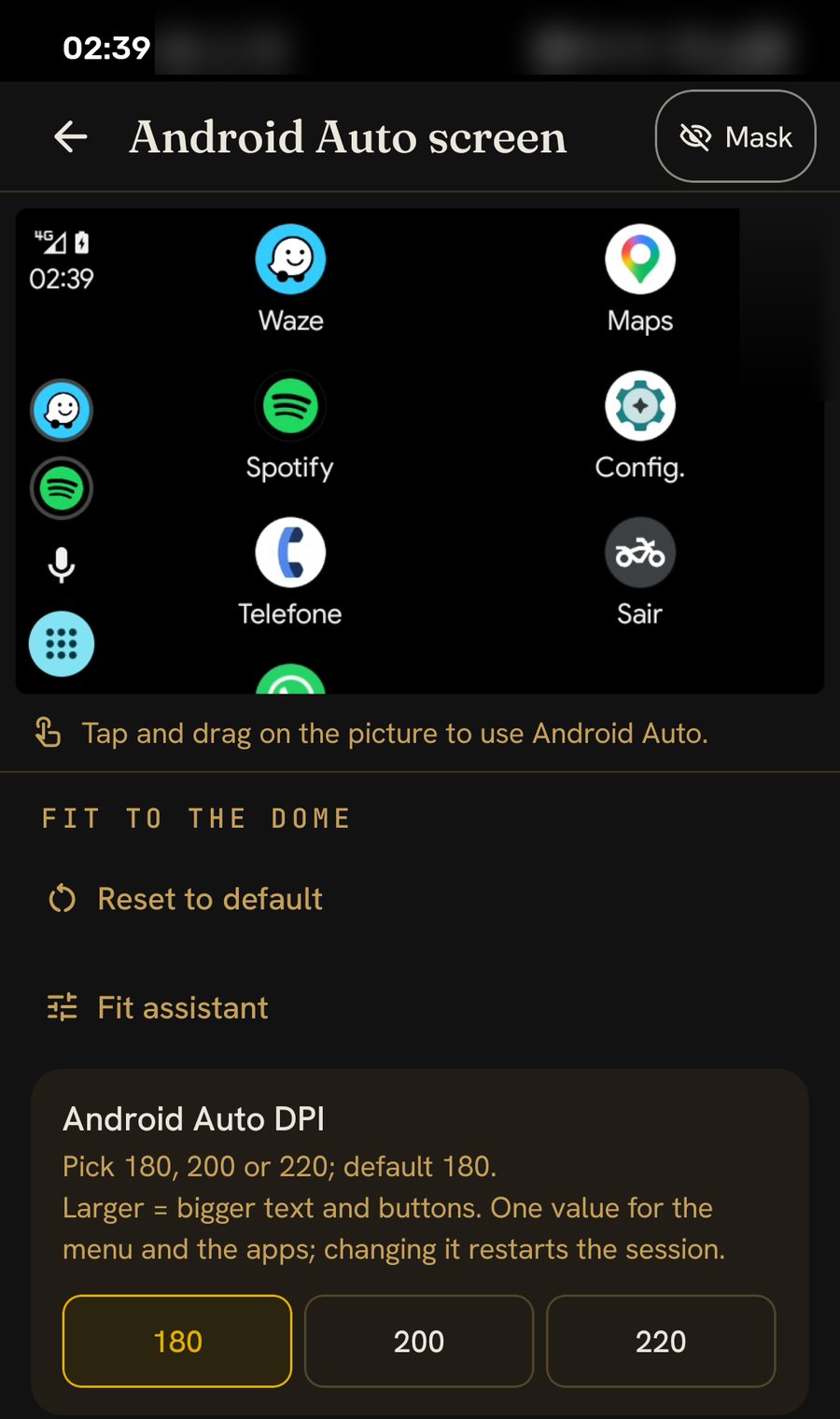
The Android Auto screen: the Android Auto preview (here with the map blurred for privacy), the Mask button, the Fit assistant and the DPI with 180, 200 and 220 (further down, the Navigation and Others tabs and the modes).
What is the “Fit assistant”?
A short guide, on the Android Auto screen, that helps a new phone check that the maneuver arrow and the speed show whole on the dash: on different phones Android Auto may draw them somewhere else. On a new install it opens by itself the first time; afterwards, the Fit assistant button opens it again. With the projection on, open Waze or Google Maps in Android Auto and start a route. The assistant turns the Mask on (if it is off) and asks two things about the clear part of the picture, which is what reaches the dash’s glass: does the arrow, with its distance, show whole? Does the speed show whole? On “No, adjust” it shows the counters for that step (the crop’s place and size, or the move in Whole image mode); each tap applies at once and is already saved. It works on the Navigation tab’s fit. Check the result on the dash with the bike stopped. It has not been tried on another phone yet.
What are the “Navigation” and “Others” tabs?
They are two different framings, because the map and the other screens put things in different places. Navigation applies to Waze and Google Maps; Others applies to Android Auto’s apps menu and to the other apps (Spotify and the like).
REau switches the fit by itself: it tells which screen is open from the picture itself, with a small neural network on the phone. It works, but it can get a screen it has never seen wrong.
What is the “Mask”?
It is the button at the top of the Android Auto screen. When on, it darkens on the phone the part that doesn’t reach the dash’s round screen and shows where the ring is. It is for adjusting the fit while seeing the result. To see Android Auto without the darkening, turn the mask off.
What is the “Android Auto DPI” for?
It controls the size of the text and buttons Android Auto draws. You pick one of three values: 180 (the default), 200 or 220; larger makes text and buttons bigger. Changing the DPI restarts the Android Auto session for a few seconds.
What are the “Margins”?
Android Auto can draw its screen in a smaller area, centered in the 800×480 frame, with black around it: the margin says how much is taken off the width (or height), split evenly between both sides. The margin counters are no longer on the Android Auto screen and a new install asks for no margins; a value saved by an older version still applies.
My Android Auto app bar ended up on the wrong side (covering the map).
Android Auto’s side bar (clock, apps, microphone) can be on the left or on the right. You have two options:
Change the bar’s side in Android Auto’s settings. A good choice is to keep the bar on the side opposite the dash’s bubble.
Adjust the crop in REau for the side where the bar is. You can also show Android Auto’s full screen: it is a matter of taste.
What is the “Wallpaper”?
It is a still picture sent to the dash, without Android Auto, to test the dash and measure the screen (“Send wallpaper”, on the home screen). You can choose your own picture in Settings → Wallpaper (the ideal size is 526×300); “Reset to default” brings back the test grid. For normal use you don’t need it.
What can I test in Waze to improve performance?
Waze draws the map, and “heavier” maps cost more. Worth testing:
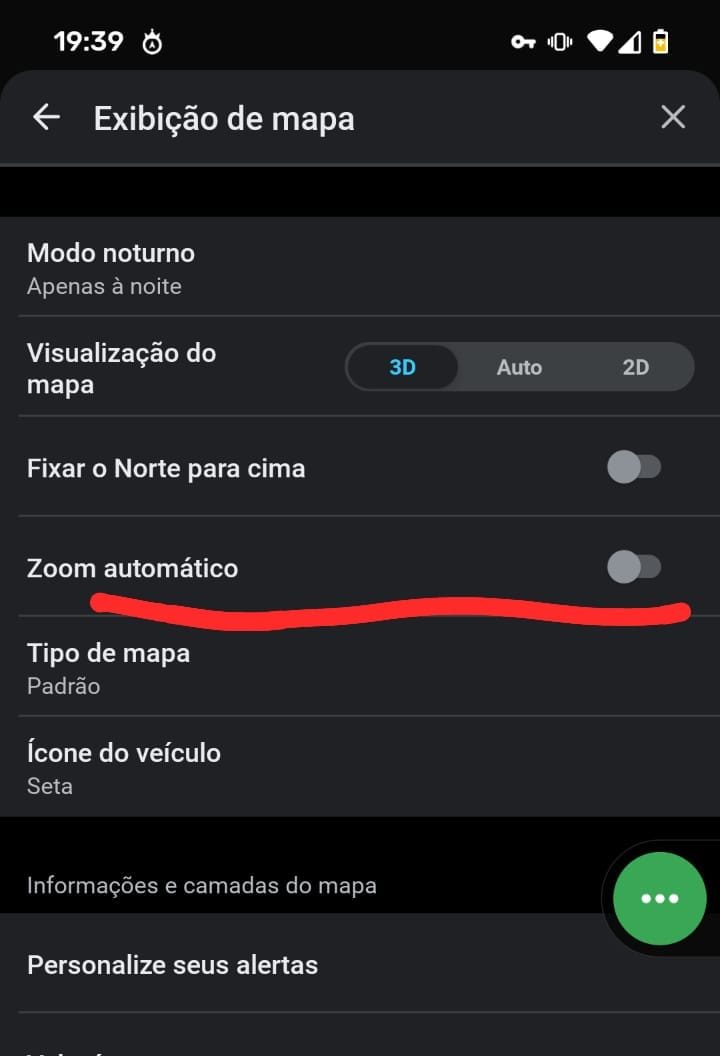
Turn off “Auto zoom” (Waze → Settings → Map display). With it, Waze zooms out at high speed and, on the small screen, shows “the whole city”. After the fixed video profiles (section 9), auto zoom does run on the dash, but many people still prefer it off, because of the screen size.
2D map instead of 3D, because 3D costs a bit more. (Not measured yet; it is a good thing to test and report.)
Waze → Map display: “Auto zoom” turned off.
Can I watch a movie or Netflix on the dash?
It makes no sense: the dash receives 2 to 6 frames per second and has limited Wi-Fi. It is made for a map, not for video.
8. Handlebar joystick
How does the joystick work with REau?
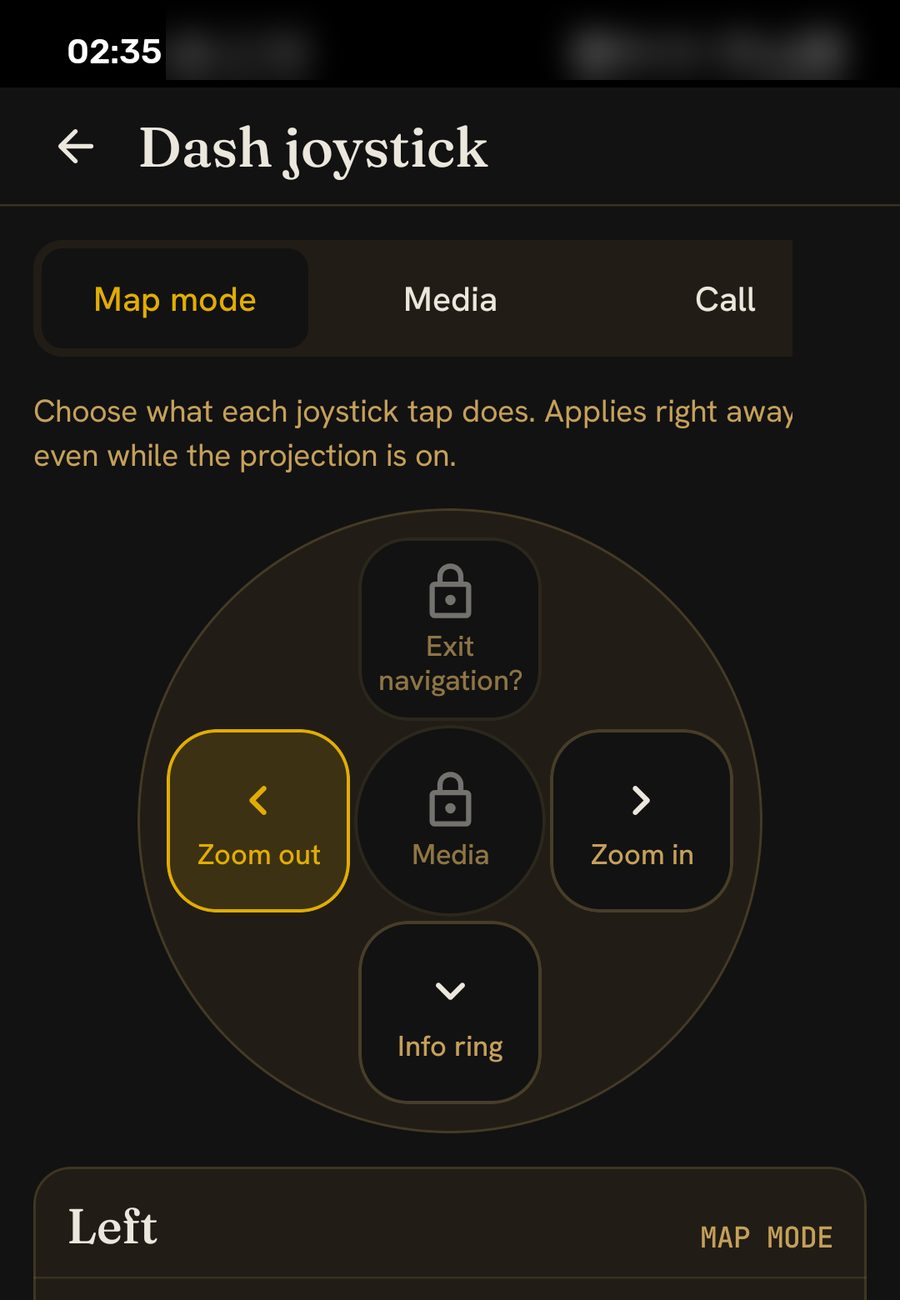
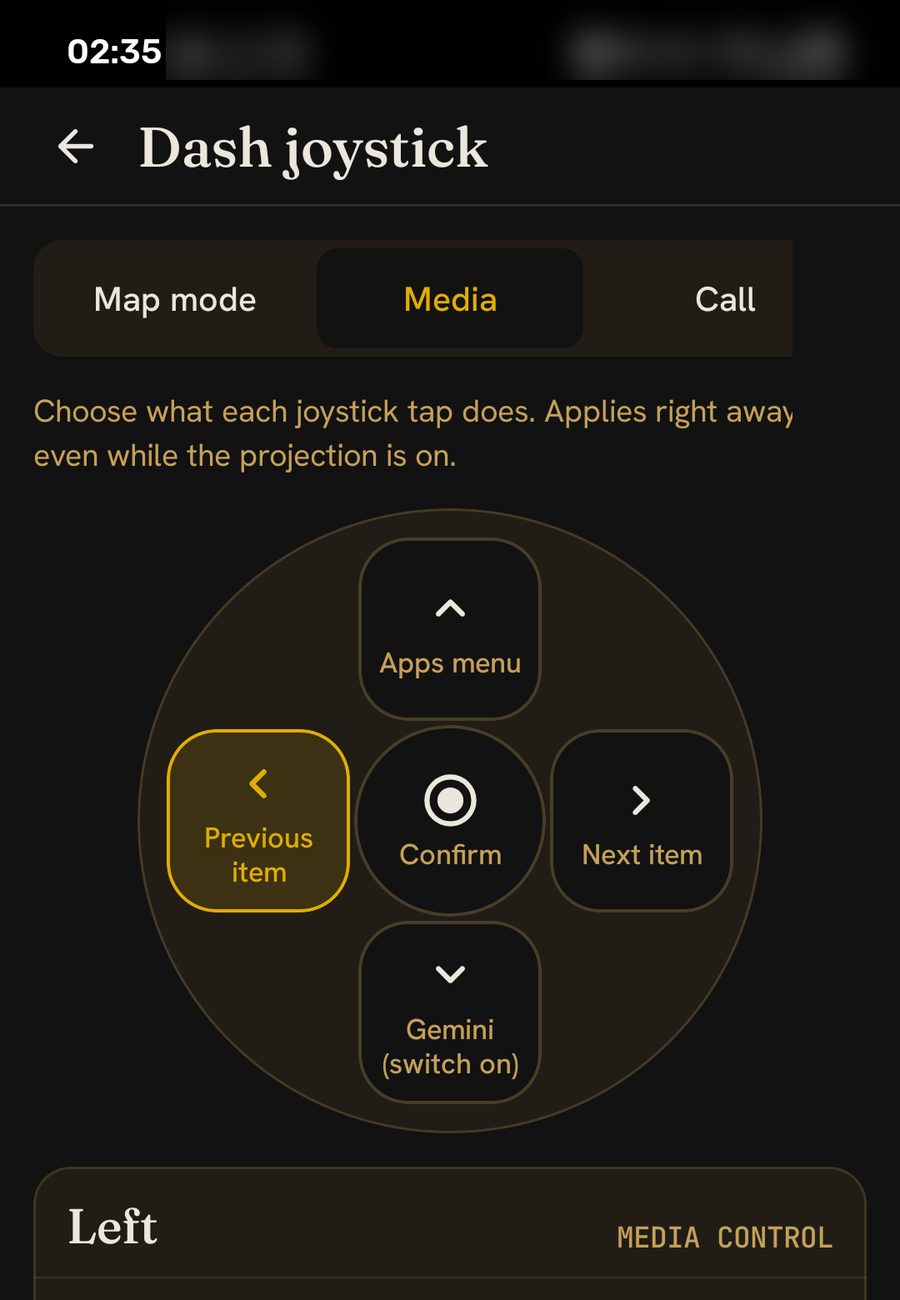
The dash has two modes, and the joystick behaves differently in each: the map mode (map zoom and focus) and media control. Each tap does one thing only: the dash’s joystick has no working double tap or hold. The default for a fresh install is:
Control
Media control
Map mode
Left
Previous item (moves the focus)
Zoom out
Right
Next item (moves the focus)
Zoom in
Up
Apps menu
Locked: it is the dash’s own “back” (asks whether to exit navigation)
Down
Gemini (if the switch is on)
Info ring: shows and hides it (section 11)
Center
Confirm
Locked: puts the dash in media control
If you updated REau over an old version, the choices you had already saved stay in force and may differ from this table. Check Settings → Dash joystick.
Can I change what each button does?
Yes, in Settings → Dash joystick. Tap the control and then the action. The screen has three tabs: Map mode, Media and Call, and each control is a single tap. The Call tab is read-only: it shows what each button does during calls (fixed, and the same in both dash modes; it needs the “Answer calls” switch). There are 17 options: nothing, previous item, next item, confirm, back, apps menu, play/pause, next song, previous song, volume up, volume down, Gemini, zoom in, zoom out (the zoom keeps the picture’s bottom edge and only acts on Waze and Google Maps), switch map and music, open map and open music. The change applies right away, even with the projection on. “Reset to default” undoes everything. The “locked” controls in map mode cannot be changed: up and center belong to the dash itself. Down starts as REau’s button for the info ring (it sends nothing to Android Auto) and can take another action.
The dash only shows the song (music card) with the “Now playing” switch on and previous song, play/pause or next song on some control of media control; the standard page has no music control, so the music card is off until you add one, and the Media tab of the joystick page says whether the dash shows it.
Switch map and music: no control has it until you pick it. On a tap, REau looks at what Android Auto shows: on the map it opens the last music app you used (what the Media button of an Android Auto head unit does); on anything else (Spotify, the apps menu, another app, a screen it is not sure of) it opens the navigation app (the Navigation button). The screen reading only knows Spotify as music; YouTube Music, say, counts as “another app”, and the rule “anything else goes to the map” covers that. The dash’s title says “Music” or “Map”, whichever it went to. It warns on the right button, as Gemini does. “Open the phone” and “Switch app” were taken out.
Open map and Open music: at the end of the list, no control has them until you pick one. They always open their destination, without looking at what Android Auto shows: the last navigation app (the Navigation button) or the last music app (the Media button). The dash’s title says “Map” or “Music”. They warn on the right button, like the one above. Pages saved with the old “Open navigation” and “Open the music app” read each one’s own action again.
Volume up and volume down: no control has them until you pick them. They move the phone’s own volume one step each press, straight on the music volume and with no volume panel on the screen (the sound plays on the phone, not in Android Auto); during a call they move the call’s volume instead (with “Call notice on the dash” on, the default, a call’s volume is on right and left: see “How do I answer calls with the joystick?”). The dash’s volume bar follows at once, and a small pill at the top of the dash’s video says the level reached (“Volume notice on the dash”, below), or, with that notice off, the title of the gold band says it for 1.5 seconds (for example “Volume 12/30”, or “Call 5/7” during a call). They are not music controls for the dash’s music card: with only the volume on the page the card does not show. They need nothing else switched on.
Tip: the joystick takes a little while to get the hang of; try it while stopped before you ride.
The dash joystick screen, Map mode tab, with the defaults: Zoom out on the left, Zoom in on the right, the info ring on the bottom and the locked controls for up (“Exit navigation?”) and center (“Media”).The dash joystick screen, Media tab, with the defaults: previous item, next item, app menu, Gemini and confirm.
How do I answer calls with the joystick?
With the “Answer calls” switch on (it is on by default, but it only works once the phone permissions are allowed: use the Permissions screen). It works in both modes of the dash and for carrier calls and voice-app calls such as WhatsApp, Telegram and Signal, through Android Auto:
Situation
Left
Right
Center
Up / Down
Phone ringing
Answers
Declines
Declines
Nothing (with “Call notice on the dash” on; off, as in the mode the dash is in)
During the call
Volume −
Volume +
Hangs up
Nothing
After answering, declining or hanging up, the same button goes silent for 3 seconds, so a repeated tap doesn’t act by accident (left and right on a call already answered are the volume and work at once).
If the helmet intercom answers first (after about 7.5 s of ringing), a tap on the center hangs up the call that was already answered.
During a call right raises the call’s volume and left lowers it (one step per tap), and up and down do nothing. It is the same in both dash modes: in the map mode right and left are the codes 0x13 and 0x14, in the media mode they are “next” and “previous”. The map mode’s up is the dash’s back, which it sends only now and then, so the volume is not on up and down. That is with “Call notice on the dash” on (the default; see section 8, “What shows on the dash when I press the joystick?”). With it off, the dash keeps left and right for itself during a call and REau doesn’t receive those taps. With the notice on, the taps of a ringing or ongoing call neither show nor hide the maneuver ring, and down doesn’t switch the info ring. The 5 s volume lock holds on a call (after a volume tap only the call’s volume is taken), except center, which always hangs up, even under the lock.
Can I use Gemini (the voice assistant)?
Yes, with the “Gemini” switch (on by default, but it only works once the microphone is allowed: use the Permissions screen). Choose the “Gemini” action for one of the controls on the joystick page (by default it is Down in media control). The voice goes through the helmet’s Bluetooth headset, or through the phone’s microphone if there is no headset. REau does not store the audio. With no intercom in the helmet, the Tips page suggests swapping the Gemini action for “Switch map and music”.
A blue border showed up around the map. What is it?
It is Android Auto’s “focus”: it appears when you use the joystick and, in Android Auto, normally only goes away with a tap on the screen. REau removes the focus by itself about 1 minute after the last joystick use.
The joystick doesn’t respond in map mode.
The dash only passes the joystick on in map mode when its maneuver bubble shows something. With no route, REau shows the arrival pin in the bubble precisely for that. If it stops responding, turn the projection off and on and, if it continues, open an issue in the project’s repository with the log (section 15).
Can I remove the maneuver ring (the white circle on the left)?
The maneuver ring is native to the dash’s system: REau only sends which instructions to show (the maneuver icon and the distance). There is a “Maneuver ring” switch (Settings → On the dash; off by default, so the dash looks cleaner): off, REau hides the ring except on Waze and Google Maps, a press in map mode shows it, a press in media control hides it, and the center button of map mode switches it. But with the ring hidden the dash stops passing the joystick on in map mode: you lose part of the joystick (no zoom, and no showing or hiding the info ring). A call always brings the ring back. For the whole joystick on every screen, leave the ring on.
Does the joystick control Spotify’s music by itself?
Yes, in media control, while Spotify is on the screen and playing (the music mode): left is the previous song, right is the next song and center is play/pause, whatever the Joystick page says for those three. Up and down stay as you set them, and map mode never changes. After you pause, the music controls stay for 5 more seconds, so the center can start the music again; after that, or as soon as Spotify leaves the screen, the buttons go back to what the page says (moving the focus, confirming). If the music starts again within the 5 seconds, it stays in music mode. The music mode (and the song on the gold band) only turns on once the picture confirms that Spotify is in front, about 1 second after it opens, so it does not flash when you pick another app in the Android Auto menu. A call always comes first.
The dash sometimes sends a stray side (most often the right) just before the center. So, in music mode, a side waits a quarter of a second before changing the song, and it is dropped if the center arrives in that time: changing the song is a quarter of a second slower, and in return a press of the center to pause does not skip a song. For the same reason, on the Joystick page, picking for the right button an action that costs something when it fires by mistake (switch map and music, Gemini, next song, previous song) shows the note “This side sometimes fires together with the center.” under the action; you can still pick it.
The music mode needs REau to know what Android Auto is playing, and that only arrives with the “Now playing” or the “Who’s calling” switch on (both are on by default): with both off, the mode never turns on. The ride log says when it turns on and off and why, never the song.
What shows on the dash when I press the joystick?
Two helpers, on by default, that only show and never ask anything of the rider. The action’s name: each tap that does something writes the short name of the action (for example Next song, Back, Answer) for 1.5 seconds in the title of the dash’s gold band, where the street name goes, and then the title comes back. It helps when the joystick does not hit the button you meant: you see what the tap really did. A tap that does nothing (a bounce of the button, an ignored tap, a button set to Nothing) writes nothing. The song’s name: after “Next song” or “Previous song”, the title keeps that name until Android Auto sends the new song (up to 4 seconds after the tap); then it writes the song’s name for 3 seconds (cut at 19 characters), and goes back to the street. If the song does not arrive in the 4 seconds, the name of the action just goes away. A volume tap shows the level reached on the volume pill at the top of the video instead (with the pill off, it writes the level in the title in place of the action’s name). The legend: when the dash changes between the map mode and the media control, and at the first tap after the projection starts, a semi-transparent card appears for 3 seconds in the middle of the picture saying what each direction (up, down, left, right and center) does in that mode, by your joystick page. The dash does not say which mode it is in, so REau learns it from the tap: the legend shows at the first tap of the new mode. It does not show while the phone rings or during a call.
To turn them off, go to Settings → Joystick and turn off “Action name on the dash” and/or “Joystick legend on the dash”. It applies at once, even with the projection on.
The volume notice (on from the factory): whenever the phone’s music or call volume changes, whatever changed it (the phone’s buttons, a Bluetooth intercom, the joystick’s volume actions), REau draws a small pill of its own at the top of the dash’s video: a speaker and “Music 7/15” in amber for the music, a handset and “Call 4/7” in green for a call (a call on a Bluetooth headset too), “Muted” at zero, and a bar that fills with the level. It comes at the next frame, updates at each step and goes 2 seconds after the last one, even when the map is still. On a call, if you tap right with the volume already at the loudest (or left at the quietest), the pill shows again with the same level (“Call 8/8”), so you know the tap arrived. With it on, the title no longer says “Volume 12/30”. To turn it off, go to Settings → On the dash → “Volume notice on the dash”; it applies at once. The joystick locks on volume: after a tap of “Volume up” or “Volume down”, for 5 seconds the joystick takes only those two actions: any other tap is dropped (nothing goes to Android Auto or the phone, no name in the title, no legend, and the info ring’s switch on the down button does not act either) and does not renew the 5 seconds, while each volume tap does, and a pill that came from the joystick stays exactly as long as the lock. A volume change from outside (the phone’s buttons, an intercom) keeps the 2 seconds and locks nothing. A call ringing lifts the lock at once, so answering and declining work as always; with the call notice on, a call that goes on keeps the lock (only the call’s volume, on left and right, and the center are taken, and the center always hangs up). With the notice off there is no lock. The dash changes its own mode by itself (the map mode’s center puts it in its media mode): REau cannot stop that, it only sends nothing. With the call notice off, the dash may still show its own volume card during a call when you use the joystick’s up and down: REau does not control that one.
The call notice (on from the factory): during a call REau no longer tells the dash that the phone rings or is on a call, so the dash does not open its own call screen any more (which covers almost all of the video) nor its own volume card on a call. In their place a pill of REau’s own stays at the top of the video for the whole call and for 2 seconds after it: a handset, the name of who is calling (the contact’s, or the number; cut with “…” if it does not fit) and a small line with the joystick’s hints. Ringing: “◀ Answer · Decline ▶”; on the call: “On call 01:42 · ● End”, with the time running; when it ends, a grey pill “Ended · 03:42” for 2 seconds. A call that rang and ended unanswered leaves the grey pill with “Missed call” in red for 5 seconds (declining with the joystick does not count as missed). A call you place yourself is not announced by Android Auto, so it shows straight as “On call” (there is no “Calling…” step). The contact’s name is waited for up to 2 seconds: until it comes, the name field stays empty, and if no name comes (a number that is not saved) the pill shows the number. The volume pill has priority: while it shows, the call pill waits and comes back when it goes. The legend is not drawn during a call. It needs the “Who’s calling” switch on. To turn it off, go to Settings → On the dash → “Call notice on the dash”; it applies at once, even in the middle of a call. The name only goes to the video, and the diagnostic log says only “ringing”, “in call” or “ended after 03:42”.
9. Performance and smoothness
Why isn’t the picture on the dash smoother?
It is a limitation of the dash itself and its Wi-Fi, not of the phone. REau has only two fixed video profiles (the table below), switched by distance to the maneuver and by the estimated speed, not by real network conditions. REau does not send more than the dash can take: it has a limit.
What are REau’s video profiles?
Profile
Frames per second
Bitrate
What for
A
4 (Original, the factory pace) or 6 (REau)
400 kbps
Smoother picture, when the maneuver is near and speed is low
B
2 (Original, the factory pace) or 3 (REau)
400 kbps
Lighter on the Wi-Fi and the dash, when cruising and at high speed
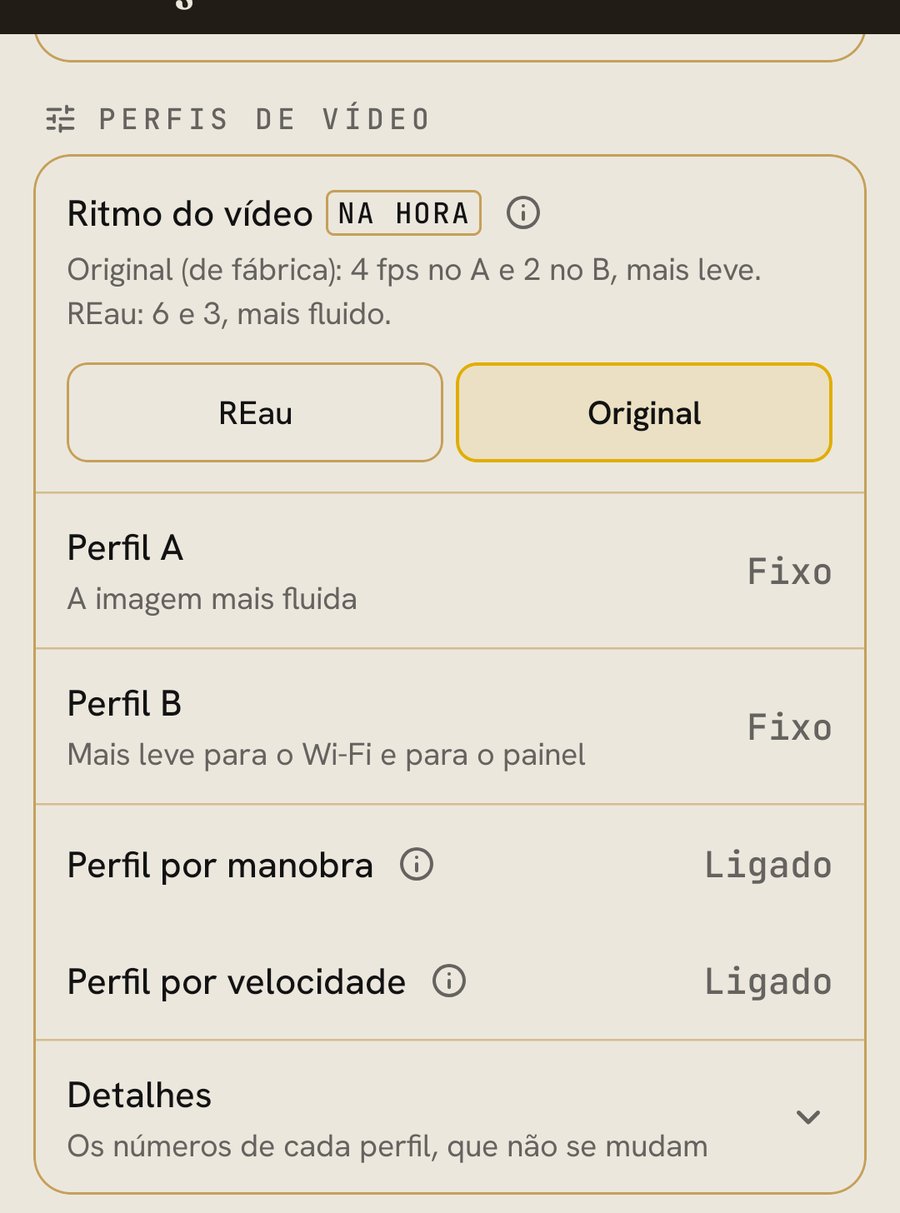
Video pace (Settings → Video profiles): Original, the factory pace, uses 4 fps on profile A and 2 on B, lighter on the dash and on the Wi-Fi; REau uses 6 and 3, the smoothest picture. Whoever already picked a pace keeps it. The change takes effect right away, with the projection on.
Constant bitrate, the same 400 kbps ceiling in both profiles (never halved), a 528×304 picture and a keyframe every 1 second (a broken picture lasts that long at most). Android Auto’s light screens (its app menu and the other apps) go up to profile A’s pace (6 fps in REau, 4 in Original), never more.
Profile by maneuver (on): within 1 km of the next maneuver, A; farther away, B.
Profile by speed (on): up to about 55 km/h (34 mph), A; from about 65 km/h (40 mph), B. The speed is estimated from the route Android Auto reports, without REau turning on GPS, so it uses no extra battery.
If either asks for B, B wins. The profiles only decide while a route is active.
Settings → Video profiles: “Video pace” on Original (the factory pace), profiles A and B fixed, profile by maneuver and profile by speed on (screenshot from the Portuguese interface).
Can I raise the frames per second or the bitrate?
No: apart from the choice between the REau and Original paces, the profile values are fixed, to avoid headaches. What the tests showed:
The dash accepts more frames per second, but the same processor that shows the video also draws the screen and handles the buttons: at 8 fps the reserve icon started to flicker and at 12 fps the dash began to ignore the buttons. At 6 fps everything worked without glitches, so REau never goes above it. Even so, the app comes with the Original pace (4 fps on A, 2 on B), lighter on the dash, and REau (6 fps on A, 3 on B) is the smoothest option (the same tip is on the app’s Tips page).
At 30 frames per second, the dash dropped and did not reconnect; at 16, it held, but it isn’t worth it.
A 200 kbps cap doesn’t work for Waze: the quality gets bad. 400 kbps is stable.
At high speed the problem is not the app or the FPS, it is the bitrate: the dash’s Wi-Fi can’t take more, and a map that changes a lot (accelerating in the city) hits the ceiling and stalls.
More frames at the same bitrate don’t make the picture sharper; compressing too much makes it horrible. REau can’t compact all the information Android Auto sends beyond that.
On the highway, at high speed, the picture freezes or lags. Is that normal?
It was REau’s issue number 1 and is still being followed. Reports:
City and low speed: works well.
On a highway at 120 km/h (75 mph), in the first-day build, there were big jumps and stalls with Waze alerts (speed camera, bump, hazard, pothole) and heavy traffic.
On the 17 Oct build (fixed profiles, 400 kbps), there is a report of riding at 130–140 km/h with a delay described as very small. These are individual reports: the Terms of use warn that the picture arrives a few seconds late.
The cause has not been fully isolated: the delay may come from Waze, from Android Auto’s queue or from the dash itself, which doesn’t report how far behind it is.
If it happens to you, send the log (section 15), with the approximate speed and what Waze was showing.
What is the “PICTURE STUCK” / “No new picture” tag?
With the bike moving on a route and Android Auto sending no new picture for 15 seconds, the dash shows the PICTURE STUCK tag at the bottom, and the notification and home screen say “No new picture”. Before, the dash repeated the last picture and looked alive. The tag goes away when the picture returns. Stopped or with no route there is no warning, because then Android Auto really is quiet.
If instead it is Android Auto’s session that drops (the dash stays connected), a short drop of up to 5 seconds changes nothing: the last picture stays. If it lasts 5 seconds or more, the dash shows Waiting for Android Auto at the bottom, in the same place, until the first new picture arrives; it goes as soon as that picture is drawn.
What is “Android Auto has no picture”?
It shows when the connection opens but Android Auto sends no frame for 10 seconds (Android Auto’s own encoder is stuck) and the dash is connected. Wait a little; if it persists, follow what the warning says (force stop Android Auto (Settings → Apps → Android Auto → Force stop) and then turn REau off and on; with Android Auto 17.4 or newer, also check that the head unit server is on). If the dash is black, this is it.
What is the red “fps” and “kbps” text over the video?
It is the “FPS and bitrate on the video” test switch (Android Auto screen), which writes the frames per second and the bitrate of the last 5 s over the video. It only exists on test (debug) builds; it sits over the map, so leave it off day to day. The same builds have “Button code on the video”, which writes in orange the code of the last button the dash sent and what REau did with it, and “FPS test card”, which replaces the dash picture with a numbered card (number, green cell, even/odd square and the number in binary) at the pace you pick, from 4 to 12 frames per second: film the dash and check whether any frame was lost, repeated or out of order. The three switches can be on at the same time.
What should I change in Waze for use on the dash?
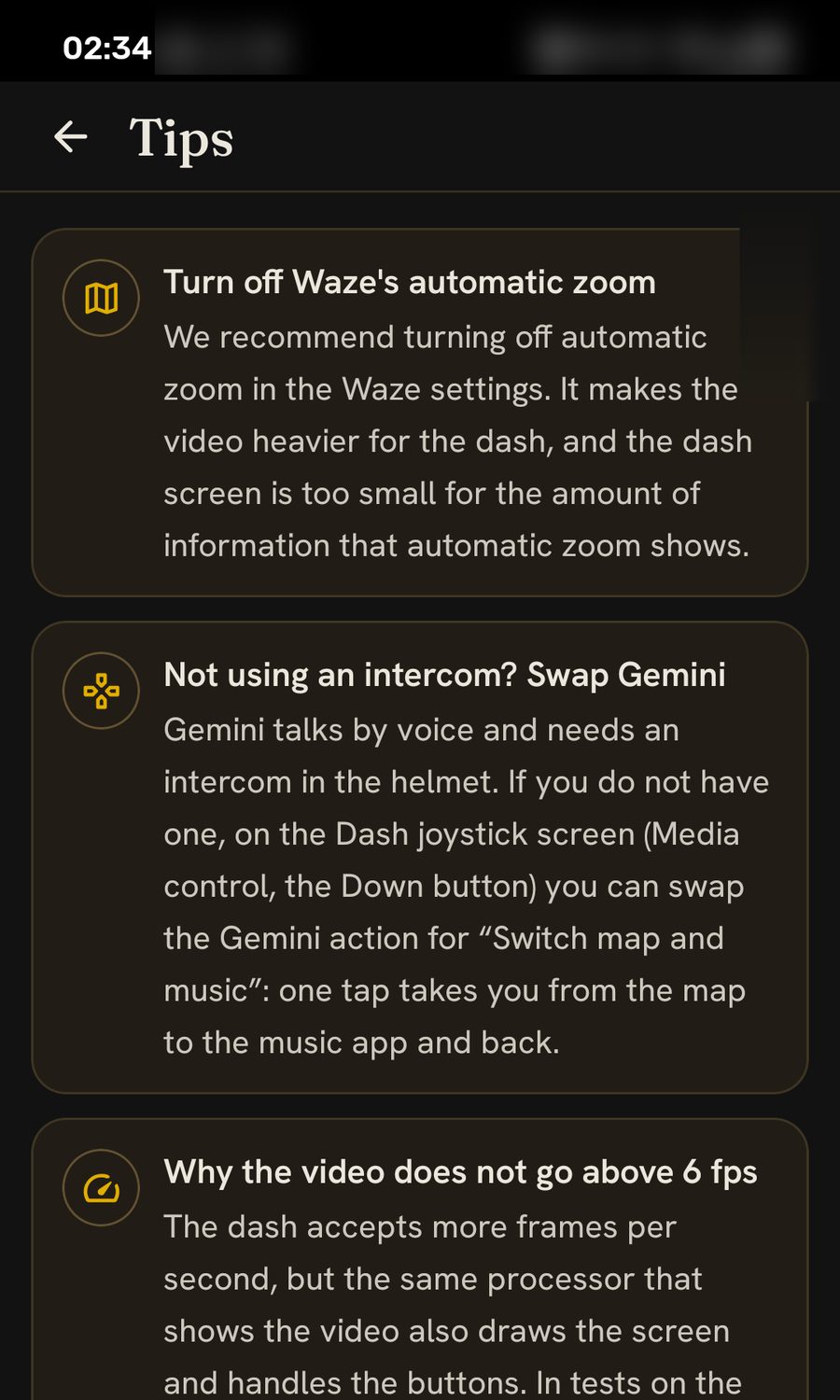
We recommend turning off automatic zoom in the Waze settings. It makes the video heavier for the dash, and the dash screen is too small for the amount of information that automatic zoom shows. This and the next recommendations are on REau’s Tips page, under the lightbulb icon at the top of the main screen. Today the page has three tips: turn off Waze’s automatic zoom; swap the Gemini action for “Switch map and music” when there is no intercom in the helmet; and why the video does not go past 6 fps.
REau’s Tips page: turn off Waze’s automatic zoom, swap Gemini when there is no intercom, and why the video does not go past 6 fps.
10. Battery and heat
Does REau use a lot of battery?
REau itself uses little. What uses most is Android Auto with Waze (GPS, map, data) and the video stream. References: an hour running with the phone in a pocket; in a test between city and highway, with the phone charging, it “didn’t get hot”; a whole night of 7 h of projection stayed stable in memory, with no leak.
Why exclude REau from battery optimization?
With the screen off, Android cuts the network and pauses background apps. Outside optimization, REau keeps streaming with the phone in your pocket. Use the “Exclude REau from optimization” button on the home screen.
“Battery saver is on” appeared.
With battery saver on and the screen off, Android cuts the network and location for background apps. REau keeps going thanks to its pinned notification, but if the dash or Android Auto drops, turn battery saver off.
What if the phone gets hot in the sun?
REau reads the phone’s temperature and lowers the frames per second by itself when it heats up.
REau’s alerts (hung or unresponsive dash, another app has the dash, refused network, phone Wi-Fi off, hot phone) go through the “Dash alerts” channel. If Android leaves it without sound or blocks it, a card on the home screen says so: if the whole app is blocked, its “Allow the alerts” button asks for the permission (or opens REau’s notification settings if Android no longer shows the window); if only the channel is blocked or muted, it leads to the channel’s settings. On a new install the card only shows after REau has asked for the permission, at Turn on.
The “Spoken alerts in the headset” switch (Settings → On the dash; off by default) makes REau speak the important alerts (the dash that disappeared or hung and came back, the hot phone and the phone’s Wi-Fi off) in Android’s voice, in the helmet headset, lowering the music for a moment and never repeating the same sentence in under a minute. The notifications show anyway, and the voice depends on the phone’s speech engine. The spoken alerts have not been tried on the bike yet.
Android Auto keeps dropping or restarting by itself, and the battery drains fast.
On some phones and ROMs (seen on an alternative ROM), the system kills Android Auto from time to time (about once a minute in the logs) because its battery use is restricted; it comes back right away, but this costs battery and leaves Android Auto without a process when you turn REau on, which can delay the server. Giving Android Auto “Unrestricted” in Settings → Apps → Android Auto → Battery may help; this has not been proven yet. Without a charger, the projection uses about 0.3 % of battery per minute (about 18 % per hour), with or without a picture on the dash.
What happens if I switch the bike off and forget REau on?
When the bike is switched off the dash’s Wi-Fi goes away, and REau keeps asking for it, with Android Auto, the video and the phone’s locks held, which drains the battery. With “Turn off by itself without the dash” (Settings → On the dash) the projection turns itself off after 5, 10 or 20 minutes without the dash (20 by default), lets go of Android Auto, the video and the locks, and a notification says why. Choosing never keeps it asking until you tap Turn off.
11. What else shows on the dash
Does the dash show the next-turn arrow?
Yes. The dash’s native bubble, the circle on the left (the maneuver ring), shows the maneuver arrow and the distance Waze reports. It is more legible than the reduced map. REau uses the motorcycle’s original model, which makes everything more integrated with the dash.
At the start of the route the bubble shows the destination pin, as the official app does; the on-ramps and the slight exit use the official app’s drawings too (no proof on the bike yet).
Roundabouts and the driving side: Android Auto usually says whether a roundabout turns clockwise or counter-clockwise, and the dash draws it as it says. When it does not (a roundabout without a direction, and the U-turn), REau uses the driving side: in Settings, On the dash, “Driving side”, Automatic reads the country of the mobile network (or, failing that, of the SIM) to know whether people drive on the left there, as in India or the United Kingdom; “Right-hand” and “Left-hand” force the side, and in those two modes REau does not read the country.
Do the time left, arrival time and total km show?
Waze shows the time left, arrival time and remaining km inside the picture itself. The dash shows, in its top bar, the route’s total km (it comes from Android Auto’s protocol 1.7, now REau’s default) and the arrival time on its card. REau also sends the dash the time left and the turn after the next one, and the “no signal” icon when Waze reroutes with no internet (always on).
The arrival time may come in 12 hours (“2:35 PM”); REau sends it to the dash in 24 hours (14:35). Maneuver distances go in miles or kilometers: the unit the dash says counts and, before it does, that of the phone’s country (not the app’s language).
Do the song name and the caller’s name show on the dash?
Yes, on the dash’s own cards, with the “Now playing” and “Who’s calling” switches (Settings → On the dash; they are on by default). The data comes from Android Auto itself, without asking for notification or contacts access. The music card also needs previous song, play/pause or next song on some control of media control on the joystick page; the standard page has none, so add one (section 8). Album art is another switch (on by default). Riders with an intercom can answer with the joystick, and the contact’s name shows on the dash. The dash’s own call card is the motorcycle’s original model: it is a white card that covers the bike’s position on the map a little, but the maneuver ring keeps guiding you. With “Call notice on the dash” on (the default), REau does not send the dash the call at all and shows its own pill at the top of the video instead.
Does the dash show the phone’s battery, GPS and signal?
Yes, with the “Phone status” switch (on by default): the dash shows the phone’s real battery, GPS and signal. When off, it shows fixed values that say nothing about the phone.
Can I see the weather on the dash?
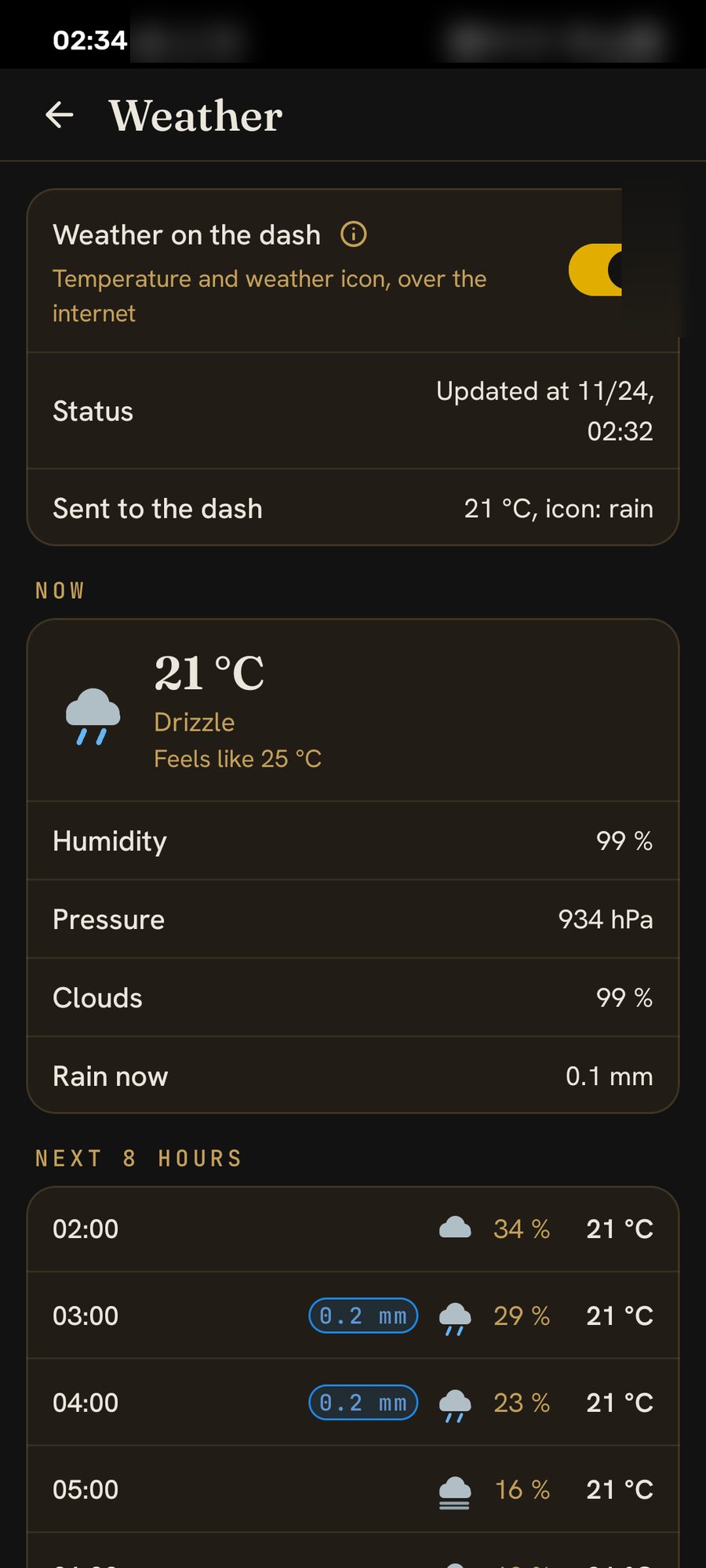
Yes, it comes on by default, but nothing is asked until you allow the location permission, and it has a switch. With the “Weather on the dash” switch on (and “Use location” on), REau queries the Open-Meteo service when it opens and every 15 minutes and sends the dash the temperature and the weather icon. The Weather shortcut shows now, 8 hours, 8 days, a 14-day chart, wind, UV, air quality, sun and moon. On each hour and each day with rain in the forecast, the Weather screen shows a blue pill with the amount of rain in millimeters (for example “2.4 mm”; for a day, the day’s total), just to the left of the weather icon; rows without rain have no pill. For this REau asks Open-Meteo for two more fields, the rain by hour and by day, for the same rounded place. Besides the update check (by hand, or once a day by itself), it is REau’s only use of the internet, together with the info ring, which asks for the same weather. Note: the temperature in the dash’s top bar comes from the motorcycle’s own thermometer.
The Weather screen: the forecast by hour and by day, with the rain in millimeters.
What is the info ring?
An optional ring (on by default, with its pages in the dash’s title; Android Auto screen → Info ring) that REau draws into the picture on the right of the dash, where the dash draws nothing, or, if you choose, in the maneuver ring’s place. It says one thing at a time: rain, wind, storms, UV, air quality, sunset or sunrise, the day’s temperatures and the phone’s battery, signal and GPS. It needs “Use location” on and internet on the phone, and asks Open-Meteo for the weather every 15 minutes. It turns from one piece to the next every 7 seconds by default (7 to 30, in its settings; never faster than 7). When there is a danger (a storm, rain within 30 min, a gust of 70 km/h, a nearly empty battery) it shows it five times, then one time the next piece of information, and over again; with several dangers they alternate in those five times, and with the carousel off it is five times the most urgent danger and once the most urgent of the others. In the title, each time it says a piece of information counts as one time of the same cycle. With it on, the down button of map mode shows and hides it; it goes away on the apps menu and in other apps and comes back as it was with the navigation. With Info in the title (instead of the ring) on (in the ring’s settings), the ring is not drawn: the same information (rain, wind, storms and what you ticked, including the phone’s battery; signal, GPS and the sky stay out) is written in the title of the dash’s gold band, turning with “REau” (with no route) in the ring’s time, or with the street (guiding): 20 s of street and 7 s of information, the street only within 500 m of the maneuver and for 15 s after passing one, and the name of a joystick action still goes in front for 1.5 s (while it shows, the information’s clock stops: the information that was on screen comes back afterwards and completes its time). The rain says that it is falling (“Raining now”) or the minutes (“Rain in 20 min”, “Rain for 20 min”); how much it rains, in millimeters, is on the phone’s Weather screen.
What is the “Bike data” screen?
A screen that only shows what the dash reports (it sends nothing to it; the Wi-Fi fields are at the top): known dash and Wi-Fi, last reading, range (how far it can still go on the fuel it has, as the dash itself counts), firmware version, variant, dash settings (temperature, distance, theme, consumption, clock, language), ABS and the low-fuel warning. “Not reported yet” means the dash hasn’t sent that item yet: REau asks when it connects and every 15 minutes.
How does the light and dark theme work?
REau’s theme is the day and night signal it sends to Android Auto. By the sun (default) is light from sunrise to sunset and dark at night; the times come from the phone’s position if “Use location” is on, or from the time zone (around 6 AM and 6 PM). Light and Dark fix the theme. Waze and other apps follow only if their theme is set to automatic.
Can I fix the dash brightness in day mode?
Not through REau. The dash only has two theme modes, automatic (which alternates by the light sensor) and dark. Fixing the brightness would require fooling the sensor or modifying the dash’s firmware, which is a lot of work and outside REau’s scope.
Can I clear or change the dash’s service reminders?
Not through REau: it does not change the dash’s settings or reminders. That is not something the app does.
Can I use apps other than Waze?
Yes. Android Auto lets you open other apps (Google Maps, Spotify and the like) and REau shows whatever is on screen. The project’s focus, however, is Waze.
12. Extras: network server and language
What is “Turn on the network server” (Android Auto in the browser)?
An optional feature (off by default) made to mirror Android Auto on an old head unit or a computer. With the projection running, REau opens a server on the local network; another device with a browser, on the same network, opens the address, enters the 4-digit PIN and sees Android Auto, with optional touch and sound.
Don’t use it on a ride: while on, REau does not look for the dash.
The PIN changes every time; after 5 wrong attempts the device waits 5 minutes. At most 2 browsers.
Traffic is not encrypted and doesn’t go through the internet: don’t turn it on in networks shared with strangers.
It turns itself off when the projection ends. The touch switch (“Allow touch from the browser”) is off by default.
Which languages does REau speak?
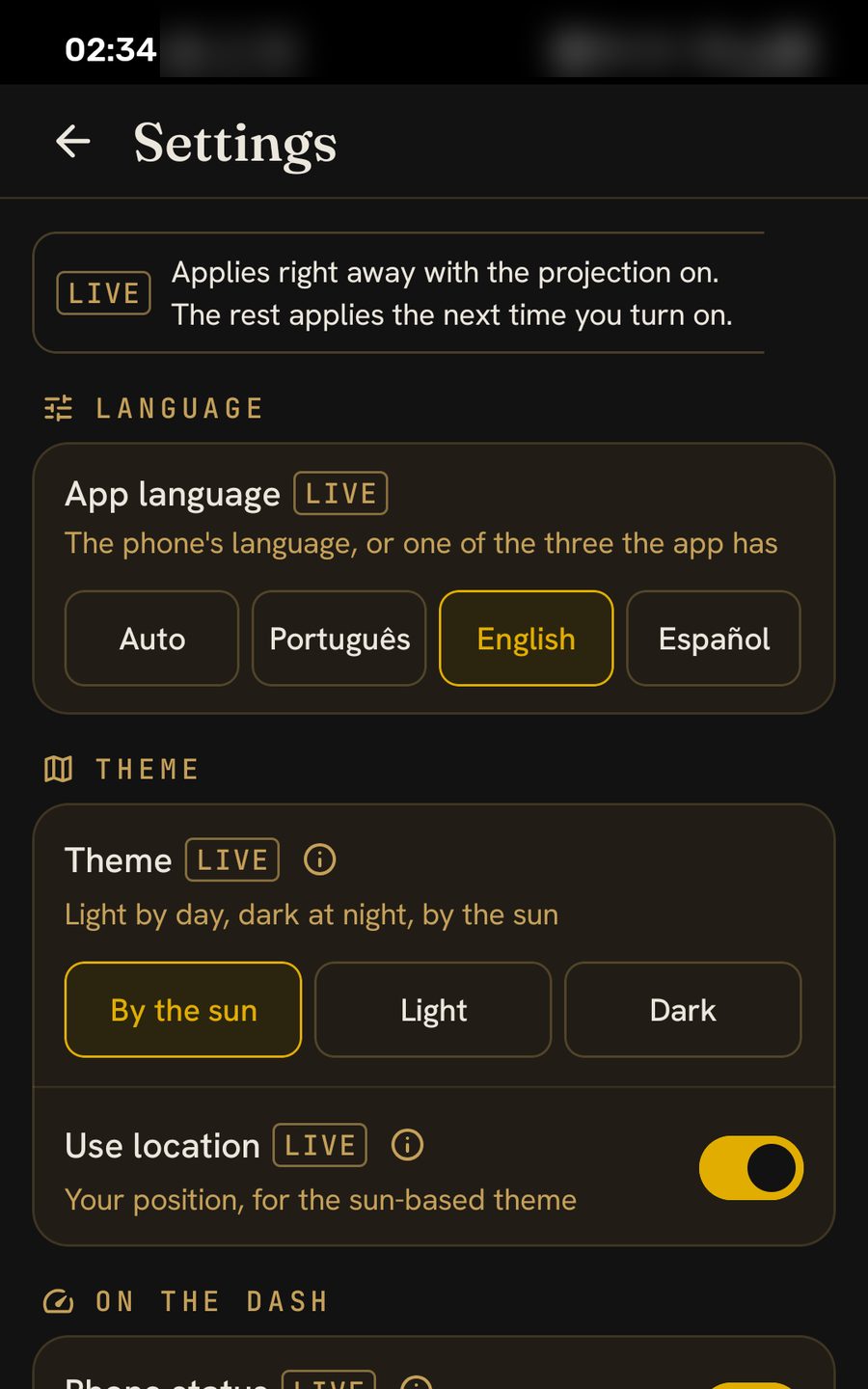
Portuguese, English and Spanish. The app follows the phone’s language and there is a selector (Auto / Português / English / Español) in Settings; English is the default for anyone using another language. On Android 13 or newer, changing the language no longer flickers the screen.
Settings: language, theme and what goes to the dash.
What are the terms of use that show up on first open?
The app asks you to accept the terms of use (in Portuguese, English and Spanish) on first open. The “I accept” button only appears after they have been read to the end (or tap “Scroll to the end”). They remain available at the end of the “REau and your data” screen, together with the Credits.
13. Common problems and app messages
What shows
What it means and what to do
“Head unit server is off” / “Android Auto isn’t accepting the connection”
The head unit server is off. If developer mode wasn’t turned on, do the ~10 taps on “Version” (section 4). Then start the server from ⋮. REau connects by itself.
“Android Auto isn’t responding” / “Android Auto stuck”
It accepts the connection but doesn’t respond. Force stop Android Auto (Settings → Apps) and stop and start the server in the ⋮ menu. REau tries again by itself.
Android Auto seems “frozen”: it accepts the connection and doesn’t respond
Android Auto’s server picks up REau’s connection but doesn’t answer the first request of the handshake (REau waits about 10 s). After 3 tries in a row like that, “Android Auto isn’t responding” appears. Either Android Auto is still stuck on the previous session (right after Turn off; the warning is then “Closing the previous session”), or Android froze it, usually because its battery use is set to “Restricted”. REau can’t see whether the process is frozen; at each try with no answer it notes in the diagnostic log what Android lets it read (version, battery, screen). On its own, REau tries again every few seconds and the warning goes away when Android Auto answers; before dialing it also opens Android Auto’s settings (always, since 20/11/2026), to try to bring it out of the freeze. What to do: open Android Auto on the phone; if that isn’t enough, force stop it (Settings → Apps → Android Auto → Force stop) and stop and start the head unit server in the ⋮ menu. To keep it from coming back, give Android Auto’s battery “Unrestricted” (Settings → Apps → Android Auto → Battery; it may help, not proven yet: section 10).
“Closing the previous session”
Normal right after Turn off: it takes up to 1 minute. REau tries again by itself.
“Another REau is installed”
The old Lite may be using Android Auto. Uninstall it (or turn it off), wait about 1 minute.
“Android Auto has no picture” / black dash
Section 9: wait a little; if it persists, force stop Android Auto and turn REau off and on (also check the server).
“PICTURE STUCK” / “No new picture”
Android Auto stopped sending pictures while the bike moves (section 9). Usually comes back by itself.
“A VPN is holding REau back”
Turn the VPN off or exclude REau from it (split tunneling) and reconnect the VPN.
“Another app has the dash” / “Another app is using the dash connection”
Another dash app (such as the official one) is streaming. Stop its streaming. The second text is the audible alert, given once (section 5).
“The dash stopped responding. If it does not come back, turn the ignition off and on.”
Three sessions in a row ended with the dash silent and its Wi-Fi still joined. Turn the bike’s ignition off and on (section 5).
“Looking for the dash” forever
Bike key on? Dash lit and close? Phone Wi-Fi on? Location allowed? If needed, type the full network name in Bike data (section 5).
“Battery saver is on”
If the dash or Android Auto drop with the screen off, turn battery saver off.
“Dash lost, trying again”
The dash’s Wi-Fi disappeared after having connected (key off, dash far, frozen). REau tries again by itself and returns within a few seconds when the dash reappears.
“Timeout!” on the round dash, with the picture stuck
It is the dash’s own warning (not REau’s): the video stopped reaching it. The most common cause is the dash’s Wi-Fi having restarted, which can change its channel: the phone loses the network for a moment and REau comes back by itself within a few seconds, sometimes up to about 1 minute (the screen and the notification say the connection dropped, and the screen says how many seconds ago). If the bike is on and it takes over a minute, turn the bike off and on with the key. “Forget” on the dash doesn’t help: it only deletes the saved name and pairing, and REau asks for Android’s approval again. This can happen on some bikes; REau cannot stop the dash from restarting its own Wi-Fi.
The dash’s Wi-Fi refuses the connection
The dash may have frozen: turn the bike off with the key, wait about 30 s and turn it back on.
Google Maps showed up instead of Waze, or the apps menu
Open the Android Auto screen in REau and choose Waze, or use the joystick (section 6).
I turned it off and on quickly and it didn’t connect
Wait up to 1 minute (Android Auto closes the previous session) or restart the server; REau connects by itself.
After restarting the phone, it doesn’t connect
Restarting turns the Android Auto server off. Start it by hand.
The Android Auto server stayed on after Turn off
Android Auto turns it off when the session ends, which sometimes takes a few minutes (section 4). You can turn it off from Android Auto’s ⋮ menu, if you like.
14. Privacy and data
Does REau use the internet or send my data anywhere?
No, with two exceptions. It only talks to Android Auto, inside the phone itself, and to the dash, over the bike’s Wi-Fi, which has no internet. What leaves the phone goes only to the dash: the picture and, with the switches that come on by default, the song name (with its album art), the caller and the phone status (battery, GPS and signal). The only trips to the internet are the weather (Open-Meteo), for Weather on the dash or the info ring, both on by default (nothing is asked until you allow the location), and Check for updates (Settings), which asks GitHub for the number of the latest version when you tap it and, with the Notify when there is an update switch on (the default), once a day by itself. With the network server on, what leaves also reaches the devices on your local network. Inside the phone, REau also tells Android Auto that it is a motorcycle (“Announce as a motorcycle”, Settings → Android Auto, on by default, with a switch): the vehicle type and a fixed vehicle id of REau’s own, nothing that leaves the phone.
Does REau know where I am?
Not to find the Wi-Fi: the location permission is only for Android to release the list of networks. The position is only read with the “Use location” switch on (it is on by default, but nothing is read until you allow the location permission), for the sun-based theme and the weather, rounded to about 11 km, and for the info ring’s GPS card (only the signal and the heading, nothing kept). Only the rounded place leaves the phone, in the weather request to Open-Meteo; the position never goes into the log.
What is stored on the phone?
A diagnostic log (on by default) to find bugs, with no position, streets, songs or caller (for WhatsApp, Telegram and Signal calls, only the app and the buttons). The bike’s Wi-Fi name is masked and the password is never recorded. Of the dash, the log says only what it reports about itself (for example, whether the bike’s engine is on and how long the dash had been on when REau connected, for diagnosis only) and, of the phone, the kind of network in use (cellular or Wi-Fi) and whether a VPN covers REau.
The dash’s Wi-Fi name and password and what the dash has already reported, encrypted with a key kept by Android.
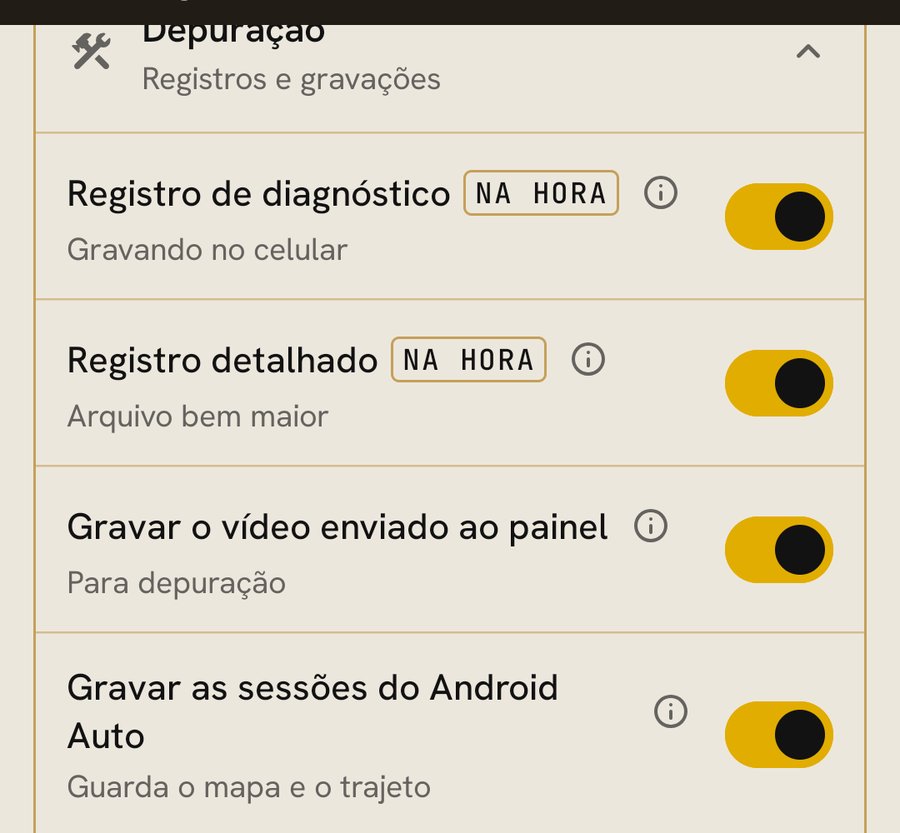
The rounded position (once you allow the location permission) and the last weather. The recordings of the video and of the Android Auto sessions exist only if you switch them on (Settings → Debug): off by default in the build you ride with, on in the debug build. They keep what the dash shows (the map, the route, the songs and callers on its cards) and what Android Auto sends (its messages, with the name it gives your phone), so they reveal where you rode.
The app’s crash report is written on the phone even with the log off; it stays only on the phone and does not leave by itself. Everything stays in the app’s internal folder and only leaves through Share (Settings → Debug). The zip that leaves through Share carries the logs masked (the dash’s Wi-Fi name, MAC addresses and the names of other Wi-Fi networks); the recordings go as they are and hold the map (where you rode) and the names of who calls, and the Debug screen says so. Logs delete themselves after 30 days (you choose 7, 14, 30 or never; the cap is 200 MB of logs; the debug build starts at never, with a 1024 MB cap). The recordings go by the same days and have their own cap, 200 MB (1024 MB in the debug build); the Android Auto session recordings take at most half of it (100 MB, 512 MB in the debug build) and go before the video sent to the dash. In Settings → Debug you can turn the log off, view it and delete logs and recordings.
Are the dash’s Wi-Fi and the picture encrypted?
The dash’s Wi-Fi is protected by the dash’s own password; the picture has no other encryption. REau doesn’t control that: it is how the dash works.
And what do Android Auto, Waze and Gemini do with my data?
That is out of REau’s reach and follows Google’s and Waze’s rules (your voice in Gemini, for example). Everything the app does with data is on the “REau and your data” screen, in the app itself.
How do I know if there is a new version?
In Settings → Updates, tap Check now. REau asks GitHub for the latest published release and tells you whether it is newer than the one you have (a development build says so). It downloads and installs nothing: if there is a newer version, the See the release button opens its page in the browser, and installing it is up to you. The request carries no account and nothing about you; GitHub sees the REau version (in the request’s User-Agent) and the phone’s address, as any site does. With the Notify when there is an update switch (on by default) it also asks the same thing by itself, once a day with the internet on, and shows a quiet notification “REau <version> available”, once per version; tapping it opens the release page. Nothing is downloaded or installed. With the switch off it only asks when you tap.
15. How to report a problem
I found a bug or have a suggestion. How can I help?
What helps the author most, in this order:
The log. The diagnostic log is already on. For more detail, turn on the “Detailed log” (a much larger file) in Settings → Debug before the ride. Afterwards, in Settings → Debug → Share → Logs, attach the file to an issue in the project’s repository (its address is on the app’s Credits screen). Look at the file before sending it: logs, recordings and photos may contain places you went, Wi-Fi names, phone numbers or contact names. Cut out what you don’t want public; when in doubt, describe it in words. On the road there is no way to see what is going on: what is not in the log doesn’t exist for the diagnosis.
The rider’s mark. When something happens while riding, tap the Mark button in REau’s notification to mark the moment in the log.
The context: the phone and the Android version; the REau version (footer of the home screen); the stretch (city or highway) and the approximate speed; what Waze was showing (many alerts, auto zoom, 2D or 3D).
A photo or video of the dash, when possible, with the bike stopped (or filmed by someone or by a fixed camera).
Recordings (“Share → With recordings”) are large and reveal the route: only attach them if the author asks. The log is designed not to keep position, streets, songs or caller, but check before sending. Security flaw? Don’t use a public issue: use the repository’s private vulnerability report (Security tab, “Report a vulnerability”).
Settings → Debug: diagnostic log and detailed log, here both on (screenshot from the Portuguese interface).
16. Glossary
Term
What it is
Dash / Tripper Dash
The round TFT display with navigation on Royal Enfield motorcycles.
APK
The installation file of an Android app outside the Play Store.
Android Auto
Google’s system that brings car apps (Waze, Maps, Spotify) to a head unit’s screen; REau repeats it on the dash.
Head unit server
Android Auto’s “front door” for an external head unit; it only shows up with Android Auto developer mode on.
Android Auto developer mode
Turned on with ~10 taps on “Version” in Android Auto’s settings. Different from the phone’s developer mode.
Maneuver ring (bubble)
The circle on the left of the dash, native to the dash, which shows the maneuver arrow and the distance.
Info ring
An optional ring REau draws into the picture, on the right of the dash, with the weather and the phone’s state.
Profile A / Profile B
REau’s two video levels: 6 fps / 400 kbps and 3 fps / 400 kbps in the REau pace, 4 fps / 400 kbps and 2 fps / 400 kbps in the Original pace.
Keyframe
The full video frame, sent every 1 s, which limits how long a broken picture lasts.
Fit / crop / DPI / mask
How Android Auto’s picture is framed, enlarged and sized for the dash’s round screen.
Wallpaper
A still picture sent to the dash, without Android Auto (for testing).
Network server
An optional feature that shows Android Auto in the browser of another device on the local network.
 RE